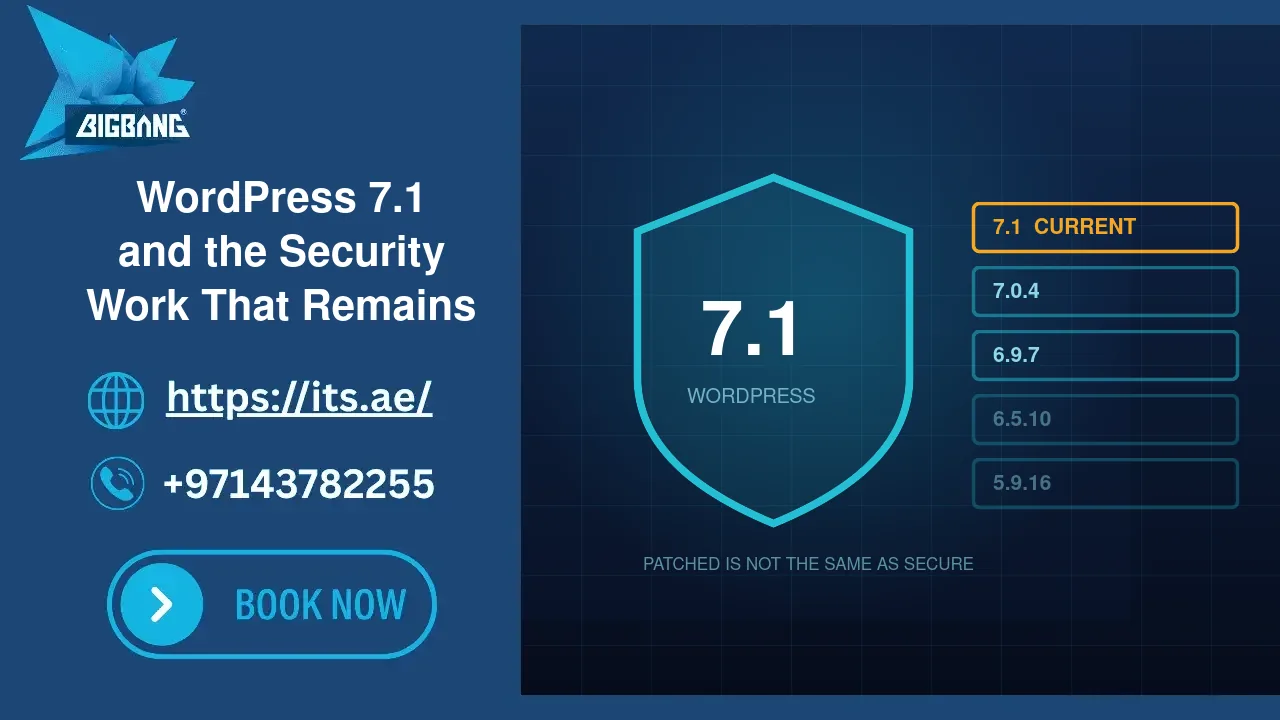
WordPress 7.1 is the current stable release, and the version service that every WordPress site quietly contacts still ships automatic security patches to branches going all the way back to 4.7. Those two facts together explain a lot of the confusion we hear from clients: “my dashboard says everything is up to date” and “my site is running WordPress 5.9” can both be true at the same moment, and neither one means the site is safe. This guide covers what WordPress 7.1 actually requires, what “still supported” really buys you, and the security work that no version number will ever do on your behalf.
Quick Answer
WordPress 7.1 is the current release; its latest update, WordPress 7.1.2, shipped on 22 September 2026 as a security release. It requires PHP 7.4 or newer and MySQL 5.5.5 or newer. WordPress still delivers automatic security fixes to more than twenty older branches — 7.0.6, 6.9.9, 6.8.10, 6.7.9, 6.6.9, 6.5.12 and back to 4.7 — so an old install does keep receiving core patches. But core is not where sites get broken. In the compromises we clean up, the entry point is almost always a plugin or theme, an administrator account nobody audits, or a PHP version that stopped receiving security fixes years ago. Update core, then deal with those three.
What WordPress 7.1 Requires
The published requirements for 7.1 are PHP 7.4 or newer and MySQL 5.5.5 or newer (WordPress.org publishes no separate minimum for MariaDB; its recommendation is MariaDB 10.11 or greater). That is the floor for the software to run — not a recommendation.
The recommendation is considerably higher, and here the gap matters. PHP 7.4 reached the end of its own security support in November 2022. A site can therefore satisfy WordPress 7.1’s minimum and still be running a PHP version that has not received a security fix in years. Every plugin on that site runs on that same unpatched interpreter.
If you take one thing from this article, take this: check your PHP version before you check your WordPress version. In cPanel it is under “Select PHP Version”; in the WordPress dashboard it is at Tools → Site Health → Info → Server. Anything below PHP 8.2 should be scheduled for an upgrade now, because PHP 8.1 lost security support on 31 December 2025. PHP 8.2 itself leaves security support on 31 December 2026, so make 8.3 or newer the target of that upgrade. Anything below 8.0 should be treated as urgent.
“Still Supported” Is Not “Still Safe”
WordPress maintains an unusually long security support tail. A site pinned to 6.1 still automatically receives backported fixes as 6.1.14; a site on 5.9 receives them as 5.9.18. This is a genuine public service, and it is why very old WordPress sites do not immediately fall over.
It is also widely misread. What that backporting gives you is core security fixes for known vulnerabilities in that branch. What it does not give you:
New security hardening. Improvements to the way WordPress handles application passwords, REST authentication, upload validation or user roles land in new releases. They are not backported. An old branch keeps the security posture of the year it was released.
Plugin compatibility. Plugin authors test against current WordPress. As your core falls behind, you reach a point where you cannot update a vulnerable plugin without first updating core — and by then core is a large, risky jump instead of a routine one.
Anything outside core. Which, as the next section explains, is where the actual problem lives.
Across the WordPress installations we maintain for clients, we regularly find sites on 5.9, 6.1 and 6.3 whose owners believe they are protected because “WordPress updates itself.” Core was indeed patched. The 2019-vintage form plugin sitting next to it was not.
Where Sites Actually Get Broken
1. Plugins and themes, not core
WordPress core is one of the more scrutinised codebases on the web, with a dedicated security team and a coordinated disclosure process. The plugin and theme ecosystem is tens of thousands of separately maintained projects of wildly varying quality, and it is where most of the compromises we are called in to clean up begin.
The specific patterns worth knowing:
Abandoned plugins. A plugin whose last update was three years ago is not stable; it is unmaintained. When a vulnerability is found in it, no fix is coming.
Deactivated plugins are still on disk. This one costs people their sites. Deactivating a plugin stops WordPress from loading it — it does not remove the files, and a vulnerable file that can be reached directly by URL is still exploitable whether the plugin is active or not. If you are not using it, delete it, do not deactivate it.
Nulled and pirated themes. Commercial themes distributed free through unofficial channels are the single most reliable way to install a backdoor deliberately. The “saving” is a few hundred dirhams; the cleanup is far more.
Premium plugins bundled inside a theme. Many commercial themes ship a licensed copy of a slider or page builder. Those bundled copies update only when the theme does, which means they are frequently months behind the standalone version — including behind its security releases.
2. Administrator accounts nobody audits
Every WordPress site accumulates administrator accounts: the developer who built it, the agency that redesigned it, the marketing contractor, the plugin that created a service account. They are rarely removed when the relationship ends.
Open Users → All Users and filter by Administrator. For each one ask: do I know who this is, are they still working with us, and do they need administrator rather than editor? Anything that fails all three should go. An account you cannot identify should be treated as a finding, not a curiosity.
3. The install nobody remembers
Test sites, staging copies, an old build left on a subdomain, a WordPress under /blog/ that was replaced years ago. These are unmonitored, unpatched, and sit on the same hosting account as the site that matters. An attacker who gains file access through the forgotten one is already inside the account that holds the real site.
Inventory what is actually running under your domain. Delete what you do not need.
4. PHP that outlived its support
Covered above, and worth repeating, because it is the one item on this list that is invisible from inside WordPress unless you go looking for it.
An Update Routine That Actually Gets Followed
The best security routine is the one that survives a busy month. This one does.
Automate what should be automatic
WordPress applies minor and security releases automatically by default — leave that on. Then enable automatic updates for plugins individually (Plugins → the “Enable auto-updates” link in each row), starting with the ones that are both widely used and low-risk to update: security plugins, SEO plugins, simple utilities.
Stage what should be staged
Do not auto-update the two or three plugins that would visibly break the site if an update went wrong — typically the page builder, the e-commerce plugin, and the theme. Update those deliberately, on a staging copy, and look at the site afterwards.
If your hosting has one-click staging, this takes ten minutes. If it does not, that is a reason to change hosting, not a reason to skip the step.
Keep a backup you have actually restored
An untested backup is a belief, not a plan. At least once, restore a backup to a staging site and confirm you get a working site back. Almost everyone who does this for the first time discovers something missing — the database but not the uploads, or a backup that silently stopped running four months ago.
Put a date on it
Monthly is enough for most business sites: check for updates, apply them, look at the administrator list, confirm the last backup exists. Twenty minutes, twelve times a year.
Hardening That Outlives Any Version Number
Updating closes known holes. These measures reduce what an attacker can do with a hole nobody knows about yet.
Two-factor authentication on every administrator. The single highest-value change on this list. It makes a stolen or guessed password insufficient on its own. Several reputable plugins add it in minutes, and any decent password manager stores the codes.
Remove the ability to install code from the dashboard. On a finished site nobody needs to install plugins or edit theme files through the browser. Adding define('DISALLOW_FILE_EDIT', true); to wp-config.php removes the built-in file editor — the fastest path from a stolen admin password to a permanent backdoor. Sites that no longer change can go further and disable plugin installation entirely.
Least privilege. The person who writes blog posts needs Author or Editor, not Administrator. This costs nothing and limits the blast radius of every compromised account.
Watch for change, not just for malware. Signature scanners find known bad files. They do not notice a new administrator appearing at 3am, or a new PHP file in your uploads folder. A tool that tells you what changed since yesterday catches things a scanner never will — including the case we see most often, where nothing on disk is “malware” and the attacker is simply logging in with a legitimate account they created for themselves.
Do not rely on file checksums alone. WordPress can verify that core files match the official release, which is genuinely useful. But it compares the files that are supposed to be there. An attacker’s file manager dropped into a folder core does not know about produces a clean checksum result and a fully compromised site. Extra files matter as much as modified ones.
Check Your Own Site in Ten Minutes
Work through this now rather than scheduling it:
1. Dashboard → Updates. Note the WordPress version and how many plugin updates are pending.
2. Tools → Site Health → Info → Server. Note the PHP version. Below 8.2, plan an upgrade.
3. Plugins → All. Sort mentally into three piles: in use, not in use, and “what is this”. Delete the second pile. Investigate the third.
4. Plugins → check the “last updated” date of anything you rely on. Over two years is a replacement conversation.
5. Users → All Users → Administrator. Confirm you can name every single one.
6. Confirm when your last backup ran and where it is stored. If it is stored only on the same server as the site, it is not a backup.
7. Check whether any other WordPress install exists on the same hosting account.
Anything you cannot answer is worth a proper look.
Frequently Asked Questions
What is the latest version of WordPress?
As of 29 September 2026 the latest version is WordPress 7.1.2, a security release published on 22 September 2026. It belongs to the 7.1 branch, code-named Mary Lou, which was released on 19 August 2026. The next major release, 7.2, is planned for December, so 7.1.x is what a maintained site should be running today.
Which PHP version should I use with WordPress 7.1?
WordPress recommends PHP 8.3 or greater. PHP 7.4 is only the minimum the software will run on, and WordPress itself warns that end-of-life versions may expose a site to security vulnerabilities. PHP 8.1 stopped receiving security fixes on 31 December 2025, so choose 8.3 or newer and test your plugins on a staging copy first.
Does WordPress update itself automatically?
Partly. Minor core releases, meaning maintenance and security updates, install in the background by default. Sites first installed on WordPress 5.6 or later also receive major versions automatically; older installations do not unless an administrator enables it. Plugins and themes update automatically only if you enable auto-updates for each one, apart from emergency patches pushed by the security team.
Sources
- WordPress.org News — WordPress 7.1 “Mary Lou” (accessed 2026-09-29)
- WordPress.org News — WordPress 7.1.2 Release (accessed 2026-09-29)
- WordPress.org Documentation — Version 7.1.2 (accessed 2026-09-29)
- WordPress.org — Requirements (accessed 2026-09-29)
- PHP.net — Unsupported Branches (accessed 2026-09-29)
- WordPress.org — Security (accessed 2026-09-29)
- WordPress Developer Resources — Upgrading WordPress (automatic background updates) (accessed 2026-09-29)
- WordPress Developer Resources — Editing wp-config.php (accessed 2026-09-29)
Where We Come In
BIGBANG ITS manages WordPress hosting for businesses across the UAE, and the maintenance side of that work is the part clients notice least and benefit from most: current PHP, updates applied and verified, daily off-server backups that we test, and monitoring built around detecting change rather than waiting for a scanner to recognise something.
If you are not certain which WordPress version your site runs, when it was last updated, or who has administrator access to it, those are exactly the questions worth answering before something forces the issue. Talk to us and we will look at the site with you.
Talk to us directly — we usually reply within minutes during business hours.