Most businesses discover the state of their backups on the worst possible day. The job has been running for years, the dashboard is green, and then something goes wrong and the restore produces a site from three weeks ago — or fails entirely. The uncomfortable truth is that a backup is not a backup until it has been restored, and almost nobody tests that until they have to. This guide covers what a backup must actually answer, the retention arithmetic that catches people out, why backups fail silently, and how to build a recovery plan you can trust rather than hope for.
Quick Answer
A working backup strategy answers three numbers before it answers anything else: how much data you can afford to lose (your recovery point), how long you can afford to be down (your recovery time), and how far back you can reach (retention). Keep copies in at least two places with one off-site, verify that jobs complete rather than merely start, and restore a real backup on a schedule. An untested backup is a hope, not a plan.
The Three Numbers That Define Your Backup
Recovery Point: How Much Can You Lose?
If your last good backup is from 02:00 and disaster strikes at 16:00, you have lost fourteen hours of work. That gap is your recovery point objective, and it is decided entirely by how often you back up.
For a brochure site that changes monthly, daily backups are generous. For an e-commerce store taking orders continuously, fourteen hours of lost orders is a serious commercial event and you need database backups far more frequently than files. The right frequency is not a technical preference; it follows from what a lost hour actually costs you.
Recovery Time: How Long Can You Be Down?
This is the number people never calculate, and it is usually much larger than they assume. It is not “how long does the restore take”. It is the total from the moment you notice the problem to the moment the site serves customers again: diagnosing, deciding which backup to use, retrieving it — which for off-site storage means downloading potentially tens of gigabytes — restoring, verifying, and clearing caches and DNS.
A restore that takes twenty minutes on paper is frequently four hours in practice. If you have never timed it end to end, you do not know your recovery time. You have an estimate, and it is optimistic.
Retention: How Far Back Can You Reach?
Here is where most strategies quietly fail, and it has nothing to do with hardware failure.
Retention is sized for the disaster people imagine: a server dies, you restore yesterday. But the most common real scenario is different. A site is compromised, the intrusion goes unnoticed for weeks or months, and when it is finally discovered every backup in the window already contains the intruder. A ninety-day retention sounds generous until you find damage dating from four months ago and discover there is no clean copy left to restore.
This is not hypothetical. Compromises are routinely discovered long after they begin — Mandiant’s M-Trends 2026 puts the global median dwell time at 14 days, and at 122 days for espionage intrusions — because a well-built backdoor keeps the site working normally. If your retention is shorter than your realistic detection time, your backups cannot recover you from the one disaster most likely to happen.
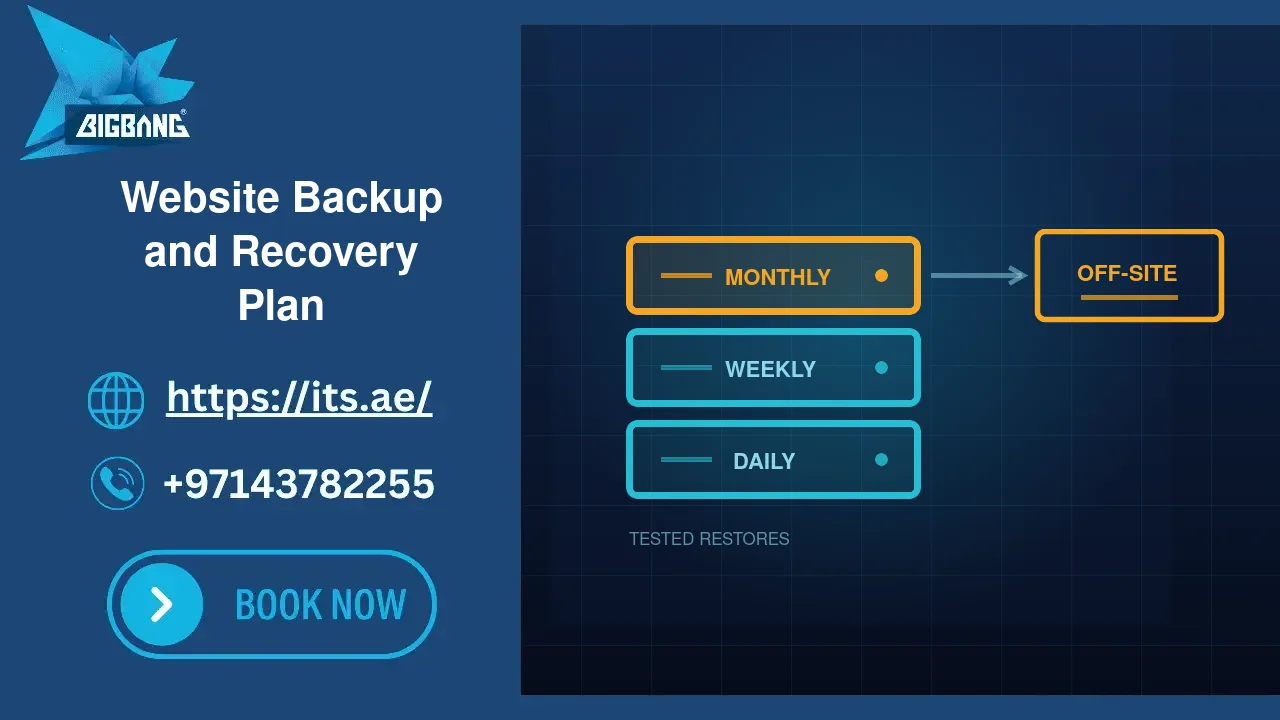
Keep a longer tail than feels necessary: daily copies for a fortnight, weekly for a couple of months, and monthly for a year. The monthly copies cost little and are exactly what saves you when the problem turns out to be old.
Why Backups Fail Silently
Backup systems are unusually good at failing quietly, because nothing user-facing breaks when they do. The site keeps working. Nobody notices until the day it matters.
The job started but never finished. Monitoring that a job ran is not monitoring that it completed. A backup interrupted at eighty per cent may leave an archive that looks present and restores into a broken site. Always check the completion timestamp, not the start.
The disk filled up. This is the most common cause we see, and it is invisible from the application. When storage runs out mid-job, the backup fails, an error is written to a log nobody reads, and the dashboard often still shows the previous successful run. Monitor free space with an alert threshold, not by looking occasionally.
Nobody receives the failure notice. Backup software usually emails a report on failure. If that mail goes to root@server and root’s mail forwards nowhere, every alert bounces into silence. Test the notification path deliberately: cause a failure, and confirm the email arrives in a mailbox a human reads.
Exclusion rules quietly skip what you need. Backup jobs carry exclusion patterns to keep archives small — caches, temporary files, logs. Written loosely, these patterns can also exclude directories you very much need, and the job still reports success because from its point of view nothing went wrong. Read your exclusion list against a real directory tree at least once.
The backup lives where the disaster does. A copy on the same server protects against a deleted file. It protects against nothing else: not a compromised server, not a failed disk array, not an account suspension. If the only copy shares a fate with the original, it is a convenience, not a backup.
What to Back Up (And What Everyone Forgets)
Files and database are obvious, and they are not the whole system.
Files and database, consistently. They must correspond to the same moment. A file backup at 02:00 and a database dump at 06:00 can produce a restored site whose content and media disagree.
Email. Website backups very often exclude mailboxes entirely, and mail is the record businesses can least afford to lose. Confirm explicitly whether yours is covered.
Configuration. Web server settings, PHP versions and limits, cron jobs, SSL certificates. Restoring files onto a differently configured server produces a site that looks restored and behaves wrongly.
DNS records. These are not on your server at all, and rebuilding them from memory during an outage is miserable. Export the zone and store it with the backups.
Licence keys and credentials for commercial themes and plugins. A restore that leaves you unable to update your page builder because nobody has the licence is only partly a restore.
The Rule Worth Keeping: Three, Two, One
Three copies of your data, on two different types of storage, with one off-site — the 3-2-1 rule CISA still recommends for business data. It has survived as advice because each element removes a specific failure.
The third copy covers the case where a backup is itself corrupt — which you discover only when you try to use it. Two storage types cover a failure mode that affects one technology. The off-site copy covers everything that happens to the building or the hosting account: fire, theft, suspension, or an attacker who reaches the server and deletes the local backups first, which is standard practice in ransomware.
For a typical business site: the live site, a daily backup with your host, and an independent copy in separate cloud storage under a different account with different credentials. That last detail matters more than the location — a remote copy an attacker can delete with the same password is not really independent. Where your storage supports it, make that copy immutable or keep an offline copy separate from your network — the protection both CISA and the NCSC name specifically against ransomware.
Test Restores, Or You Do Not Have Backups
This is the step that separates a backup policy from a recovery plan, and it is skipped almost universally.
Restore to a staging environment, not over the live site. Then check things a green tick cannot tell you: does the site load, is the database complete and current, do images resolve, do forms submit, does login work, is the most recent content actually there?
Do it quarterly, and time it. The stopwatch gives you your real recovery time, and it is the number to quote when someone asks how long you would be down.
Testing also surfaces problems that only appear on restore: a database too large for the import limit, a hard-coded path that breaks on a different hostname, a missing licence, an archive that turns out to be truncated. Every one of those is better discovered on a Tuesday afternoon than during an outage.
Backups and Compromise: A Special Case
Restoring after a security incident follows different rules, and getting this wrong is how sites get re-infected within days.
Do not restore first. Restoring overwrites the evidence you need to identify how the intruder got in, and if you cannot answer that question you will simply be compromised again — often through the very same door the restored backup reopens.
Restore from before the intrusion, not from before you noticed. These are rarely the same date. Establish when the earliest malicious file appeared, then choose a backup that predates it.
Assume the vulnerability is in the backup too. If the entry was an outdated plugin, the restored site has the same outdated plugin. Patch immediately after restoring, before the site is publicly reachable again.
Rotate every credential after restoring. The restored site brings back the passwords that were in place when it was taken — including any the attacker already knew.
Our runbook on what to do in the first hour after a compromise covers the full sequence and where the restore belongs in it.
Building a Plan You Can Actually Use
Write it down, and keep it somewhere reachable when your site is not.
A usable plan states: what is backed up and what is deliberately excluded; where each copy lives and who can reach it; how often each runs; how long each is kept; who is responsible for checking them; how the alerts reach a human; and step-by-step restore instructions specific enough that someone other than the author can follow them under pressure.
That last point is the test. If your recovery depends on one person’s memory, you do not have a recovery plan — you have a person, and they will be on a flight the day you need them.
Frequently Asked Questions
My host takes daily backups. Is that enough?
It is a good foundation and it is not a strategy on its own. Host backups typically live on or beside the same infrastructure, are sized to the host’s retention policy rather than your detection time, and disappear if the account is suspended. Keep them, and keep an independent copy you control.
How long should I keep backups?
Long enough to cover realistic detection time for a quiet compromise, which is longer than most people assume. Daily for two weeks, weekly for two months, monthly for a year is a reasonable shape for a business site, and the monthly copies are the ones that save you.
How often should I test a restore?
Quarterly for most businesses, and after any significant change to the site or hosting. Time it each occasion — the duration is your real recovery time and it tends to grow as the site does.
Are plugin-based backups good enough?
For a small site, a well-configured backup plugin storing to independent cloud storage is workable. Be aware of the limits: plugins run inside the site they protect, so they can be disabled by the same compromise, and large sites frequently exceed what a PHP process can archive before timing out.
What is the single most common backup failure?
Nobody noticing the job stopped working. Everything else follows from that: the disk that filled, the alert that bounced, the exclusion that grew. Verification is the whole discipline.
Sources
- NIST SP 800-34 Rev. 1 — Contingency Planning Guide for Federal Information Systems (RPO/RTO definitions) (accessed 2026-09-15)
- CISA / US-CERT — Data Backup Options (the 3-2-1 rule) (accessed 2026-09-15)
- CISA — #StopRansomware Guide (offline backups, ransomware deleting accessible backups) (accessed 2026-09-15)
- UK NCSC — 10 Steps to Cyber Security: Data security (offline backups, test restores) (accessed 2026-09-15)
- Google Cloud / Mandiant — M-Trends 2026 (global median dwell time 14 days) (accessed 2026-09-15)
- WordPress Developer Resources — Backups (database and files, copies in different locations) (accessed 2026-09-15)
- cPanel Documentation — WHM Backup Configuration (schedule, retention, remote destinations) (accessed 2026-09-15)
- PHP Manual — max_execution_time (30-second default) (accessed 2026-09-15)
Want Backups You Can Rely On?
BIGBANG ITS FZE has supported UAE businesses since 2003. Our backup solutions cover files, databases and mail with off-site retention sized to real recovery needs, alerting that is tested rather than assumed, and restores that are verified rather than hoped for. If you also want the site itself hardened, our website security services handle the other half of the same problem.
Talk to our Dubai team — and if you take one thing from this guide, restore a backup this week and time how long it takes.
Talk to us directly — we usually reply within minutes during business hours.