You have just confirmed it: your website is compromised. What you do in the next hour determines whether this is an afternoon of work or a fortnight of it — and whether the attacker is still inside your site next week. The instinct is to delete the malicious file and move on. That instinct is wrong, and it is the reason so many sites are cleaned three times before anyone finds how the intruder got in. This is the order to work in, why each step comes where it does, and the mistakes that turn a contained incident into a recurring one.
If you are still at the stage of “something feels wrong but I am not certain”, start with our guide on the signs your website is hacked and come back here once you have confirmed it.
Quick Answer
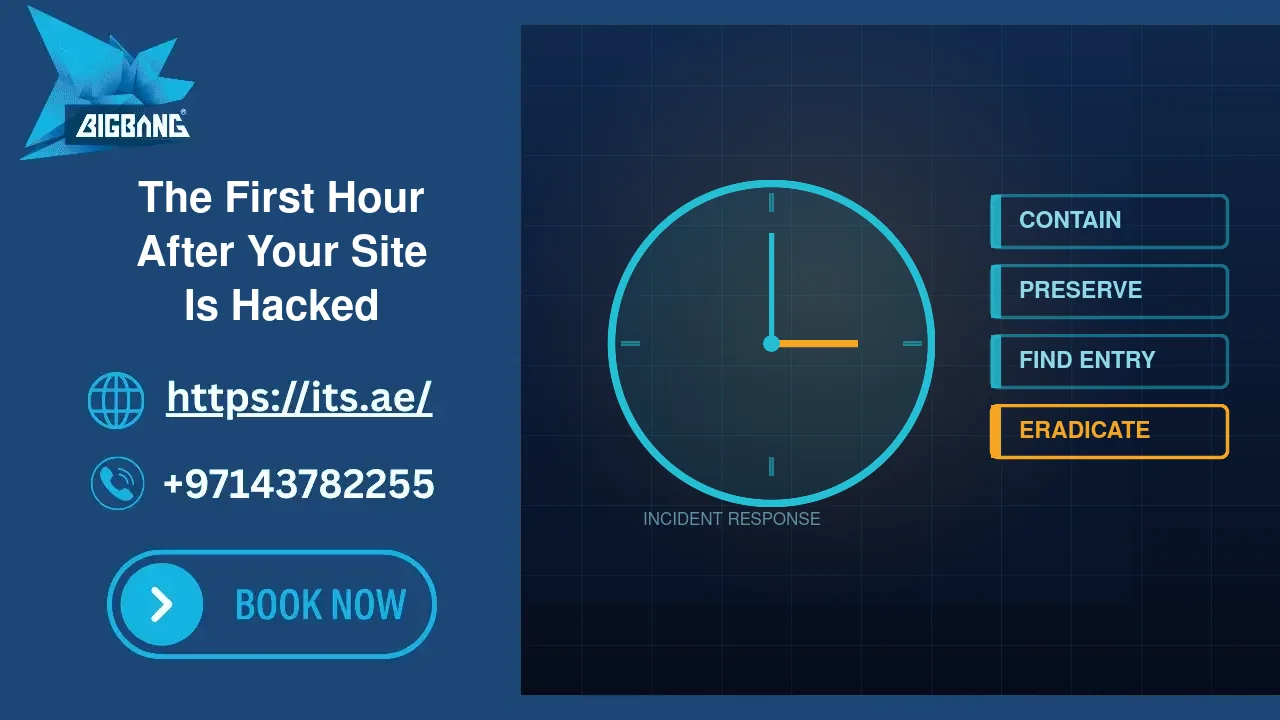
Work in this order: contain without destroying evidence, preserve the logs and a copy of the compromised state, find the entry point before you clean anything, eradicate the malware and every persistence mechanism, rotate credentials and destroy sessions, then recover and harden. Do not restore a backup first — you will restore over the evidence and, in most cases, over nothing at all, because the entry point predates the backup.
Minutes 0–10: Contain, But Do Not Destroy
The goal of containment is to stop harm to visitors and stop the attacker acting further, while leaving the scene intact enough to investigate.
Take the site offline if it is serving malware or redirecting visitors. A maintenance page is better than a site actively harming customers or accumulating a Google Safe Browsing flag. If it is defaced or phishing, this is not optional.
Do not delete anything yet. Every malicious file is evidence: its timestamp tells you when the intrusion happened, and its content often tells you what else to look for. Deleting first is the single most common mistake and it destroys the timeline you are about to need.
Do not restore a backup yet either. Restoring overwrites the compromised state and, far more importantly, usually reintroduces the vulnerability that let the attacker in. If the entry was a weak password or an outdated plugin, the restored site has both.
What you should do immediately: note the exact time, and start writing down every action you take. An hour from now you will not remember the order.
Minutes 10–25: Preserve What You Will Need
Evidence expires. Web server access logs rotate, sometimes daily. Malware scanners quarantine files on a retention clock. If the intrusion is more than a few weeks old, some of what you need may already be gone — so copy first, investigate second.
Take, in this order:
A full copy of the current state — files and database, exactly as they are now, stored somewhere separate from the site. This is not a backup you will restore; it is the record you will investigate.
The access and error logs, going back as far as they exist. These are what identify the entry point. Copy the archived monthly logs too, not only today’s.
A list of every administrator account with its registration date and email, and the current scheduled tasks.
Minutes 25–40: Find the Entry Point Before You Clean
This is the step people skip, and skipping it is why sites get re-compromised. Cleaning malware without finding the entry closes a symptom, not the door.
Start with a file integrity check. For WordPress, wp core verify-checksums compares every core file against the official release and names each one that differs. It takes seconds and immediately separates “core was modified” from “the problem is in a plugin, theme or upload”.
Look where payloads actually live. In WordPress that means wp-content/mu-plugins/, which loads on every request with no activation needed and appears only under the easily overlooked Must-Use tab, not in the default plugin list. Then the uploads directory, which should contain media and never PHP. Then .htaccess files, for injected redirect rules and auto_prepend_file directives.
Read the access logs around the timestamp of the earliest malicious file. This is where the answer usually is. You are looking for what happened in the minutes before that file appeared. A successful POST to the login page returning a 302, followed by a request to the plugin upload endpoint, means the attacker had a valid password — not an exploit. A request to a specific plugin’s endpoint returning 200 immediately before the file appeared means the opposite.
That distinction changes everything you do next. A stolen password means every account and every site sharing those credentials is exposed, and patching plugins will not help. An exploited vulnerability means patch it and the door closes.
Check the administrator list against behaviour, not names. Attacker accounts are rarely called anything obvious. The reliable signals are: an administrator who has authored nothing at all, an email on a domain the business does not control, two accounts created in the same second, a username that is a role word followed by random hex, or an account claiming to belong to a security vendor whose plugin is not even installed. Any one of those deserves a hard look; two together is close to conclusive.
Minutes 40–55: Eradicate Properly
Now you can clean — and now you know what you are looking for.
Remove, do not “clean”, planted files. A fake plugin is not repaired by stripping the malicious lines out of it; you are left with a stub that other code still calls, and the site fatals on every request. We see this pattern constantly: an automated scanner strips the payload, the file survives as an empty shell, and the site starts returning 500 errors that look like a hosting fault. Delete the whole component.
Beware files that scanners emptied rather than deleted. Many security tools truncate a malicious file to zero bytes and leave it in place. A zero-byte PHP file in an unusual path is not a healthy file — it is the fingerprint of an infection that was neutralised. It is also easy to miss, because nothing in it matches a malware pattern any more. Search by location and size, not by content.
Search by structure, not by extension. One reliable signature is a path containing a directory name repeated consecutively — images/images/images/, widgets/widgets/. Legitimate software does not do this. And do not filter to .php: payloads and staged files hide under media extensions too.
Restore modified core files from source. For WordPress, reinstalling the same version restores every core file without touching your content or triggering a database migration. It is the fastest way to turn a failing checksum report into a clean one.
Then remove every persistence mechanism. Rogue administrator accounts, scheduled tasks you did not create, injected database options, and any self-reinstalling archive the payload left behind. Malware families increasingly ship a copy of themselves in several locations precisely so that deleting the active copy achieves nothing.
Minutes 55–60: Credentials and Sessions
Two actions, in this order, and the second is the one people forget.
Reset every administrator password — on the compromised site and on every other site that shares the same hosting account, because a compromise at the file level reaches all of them. Reset the database password, the hosting control panel password, and any API keys the site holds.
Then destroy all active sessions. In many applications a stolen session cookie keeps working after a password change; WordPress does tie its login cookie to the password hash, but an application password the attacker created survives a reset untouched. Until sessions are invalidated, the attacker can still be logged in with the old credentials you just replaced. In WordPress this means clearing the session token records for every user, not only the ones you suspect.
The 48 Hours After
The first hour contains the incident. These steps close it.
Verify the site is genuinely clean rather than merely working. A working site proves nothing — the entire point of a modern backdoor is that the site keeps working. Re-run the integrity check, re-list administrators, and re-scan.
Watch for reinfection. If the same malware returns within days, you missed either a persistence mechanism or the entry point. Return to the logs.
Deal with search engines. If Google flagged the site, request a review in Search Console once it is clean. Submitting while still infected restarts the clock and can extend the penalty.
Close the door you found. If it was a vulnerable component, patch it and audit everything else for the same neglect. If it was a stolen password, enable two-factor authentication and work out how the password leaked — a reused credential, a compromised device, or a breach at another service. Rotating a password without answering that question means the new one travels the same path as the old.
Check your reporting duties. If customer personal data was within the attacker’s reach, record what was exposed and when, and check your notification obligations under the UAE Personal Data Protection Law (Federal Decree-Law No. 45 of 2021) — our guide to the PDPL and your website covers the practical side.
The Mistakes That Make It Worse
Restoring a backup as the first move. It overwrites the evidence, and it usually restores the vulnerability too. Restore late, from a point you have confirmed predates the intrusion, and only after you know how the intruder got in.
Cleaning the malware but not the accounts. A rogue administrator is a permanent key. Removing the payload while leaving the account means the attacker simply logs back in and plants it again.
Assuming one site is one problem. When many sites share a hosting account, they share a filesystem identity. Code running on one can write to all of them. Check every site under the account, not the one that showed symptoms.
Treating the scanner’s report as complete. Automated scanners are excellent at known signatures and blind to a valid login. If your scanner reports nothing but you have unexplained administrator accounts, believe the accounts.
Waiting for certainty before containing. Contain on suspicion; investigate at leisure. The cost of a maintenance page for an hour is far lower than the cost of a Safe Browsing flag.
What “Clean” Actually Means
A site is clean when four things are true at once: the file integrity check passes, the administrator list contains only people you can name, the entry point is identified and closed, and every credential that could have been exposed has been rotated with sessions destroyed.
Three of four is not clean. It is a site that will be compromised again, usually by the same person, usually within weeks.
Frequently Asked Questions
Should I take the site offline immediately?
If it is serving malware, redirecting visitors, hosting phishing content, or defaced — yes, immediately. If the compromise is a backdoor with no visitor-facing effect, a maintenance page buys you calm but is not urgent. Judge by harm to visitors, not by embarrassment.
Can I just restore last week’s backup?
Only if you can establish that the intrusion happened after that backup was taken, and only after you have identified and closed the entry point. Most intrusions are discovered long after they began, so “last week” is frequently already compromised. Restoring also destroys the evidence you need to be sure.
How long does a proper clean-up take?
For a single site with a clear entry point, a few hours. For a hosting account with many sites sharing a filesystem, allow a day, because every site must be checked. The investigation is the slow part, not the cleaning.
My host says their servers are secure. Does that settle it?
No, and it is usually true and irrelevant at the same time. Server-level security does not cover an application-level compromise: a valid password used on your login page or an outdated plugin on your site is not something server hardening prevents.
How do I know the attacker is really gone?
You do not know from the site behaving normally. You know from the four conditions above being true simultaneously, and from a period of monitoring afterwards in which nothing new appears.
Sources
- NIST CSRC — SP 800-61 Rev. 3, Incident Response Recommendations and Considerations for Cybersecurity Risk Management (accessed 2026-09-15)
- WordPress.org Documentation — FAQ My site was hacked (accessed 2026-09-15)
- WP-CLI (developer.wordpress.org) — wp core verify-checksums (accessed 2026-09-15)
- WP-CLI (developer.wordpress.org) — wp core download (–version, –force) (accessed 2026-09-15)
- WordPress Advanced Administration Handbook — Must Use Plugins (accessed 2026-09-15)
- WordPress Code Reference — WP_Session_Tokens::destroy_all() (accessed 2026-09-15)
- WordPress Code Reference — wp_generate_auth_cookie() (accessed 2026-09-15)
- WordPress REST API Handbook — Application Passwords (accessed 2026-09-15)
- OWASP Cheat Sheet Series — Session Management Cheat Sheet (accessed 2026-09-15)
- web.dev (Google) — Request a review for a hacked site (accessed 2026-09-15)
- Google Safe Browsing (accessed 2026-09-15)
If You Are in the Middle of This Now
Incident response is a bad thing to learn during an incident. BIGBANG ITS FZE has supported UAE businesses since 2003, and our hacked website recovery service covers exactly the sequence above — containment, forensic review, eradication, credential rotation and blacklist delisting — with the entry point identified rather than guessed. Our website security services then put the monitoring in place so the next attempt is noticed in hours rather than months, and our UAE security compliance checklist sets out the baseline we recommend.
Talk to our Dubai team — and if you are mid-incident, preserve your logs before you do anything else.
Talk to us directly — we usually reply within minutes during business hours.