Almost every website or email problem a business calls us about turns out to be DNS. The site moved to a new host but half the world still sees the old one. Email from your domain lands in spam. A subdomain nobody remembers creating is pointing at a server that was decommissioned two years ago. In each case the underlying cause is a handful of small text records that nobody has looked at since the domain was registered.
DNS is not complicated. It is unfamiliar, which is different. This guide explains the records that actually matter for a business domain, what each one does, the specific mistakes that cause the most damage, and how to check your own domain in ten minutes.
Quick Answer
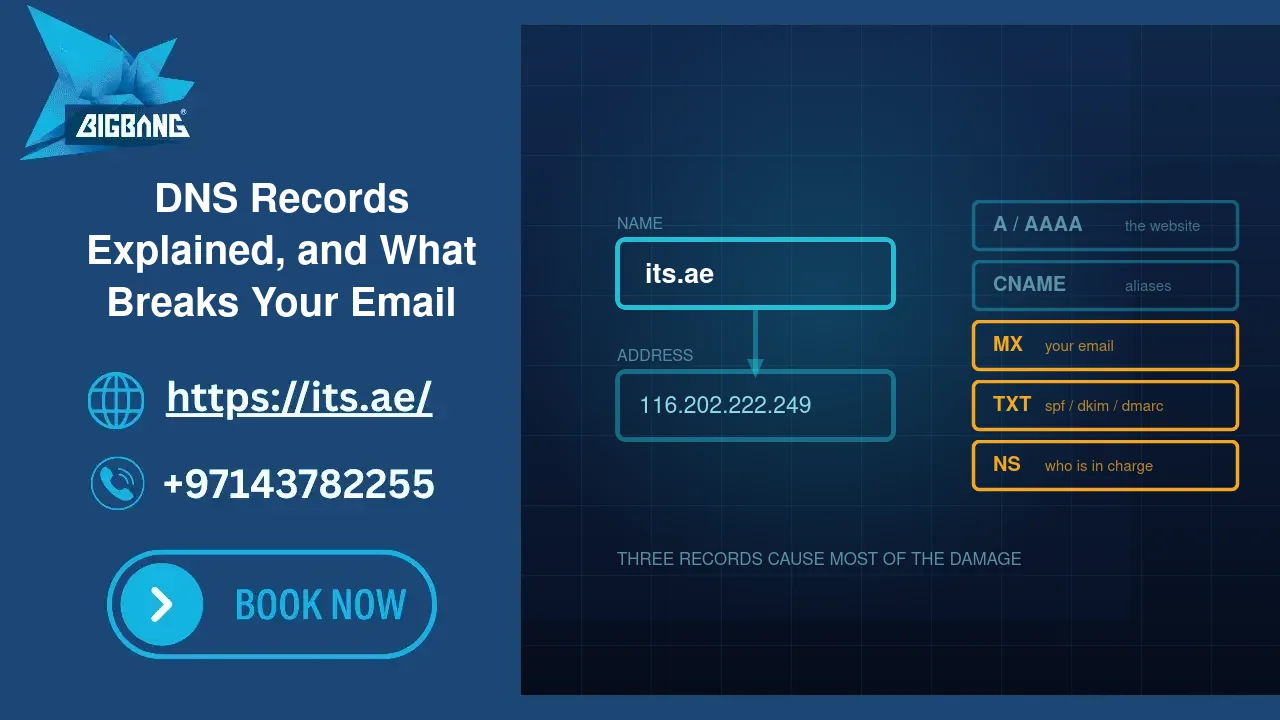
DNS translates your domain name into the addresses machines use. For a normal business domain you care about seven record types: A (points the domain at a server’s IPv4 address), AAAA (the IPv6 equivalent), CNAME (points one name at another name), MX (says which server receives your email), TXT (holds verification strings and email authentication), NS (says which nameservers are authoritative for your domain), and CAA (says which certificate authorities may issue SSL certificates for it). The three that cause the most damage when wrong are MX, TXT (SPF, DKIM and DMARC), and NS.
What DNS Actually Does
Machines find each other by numeric address. People remember names. DNS is the system that turns one into the other, and it works like a chain of referrals rather than a single lookup.
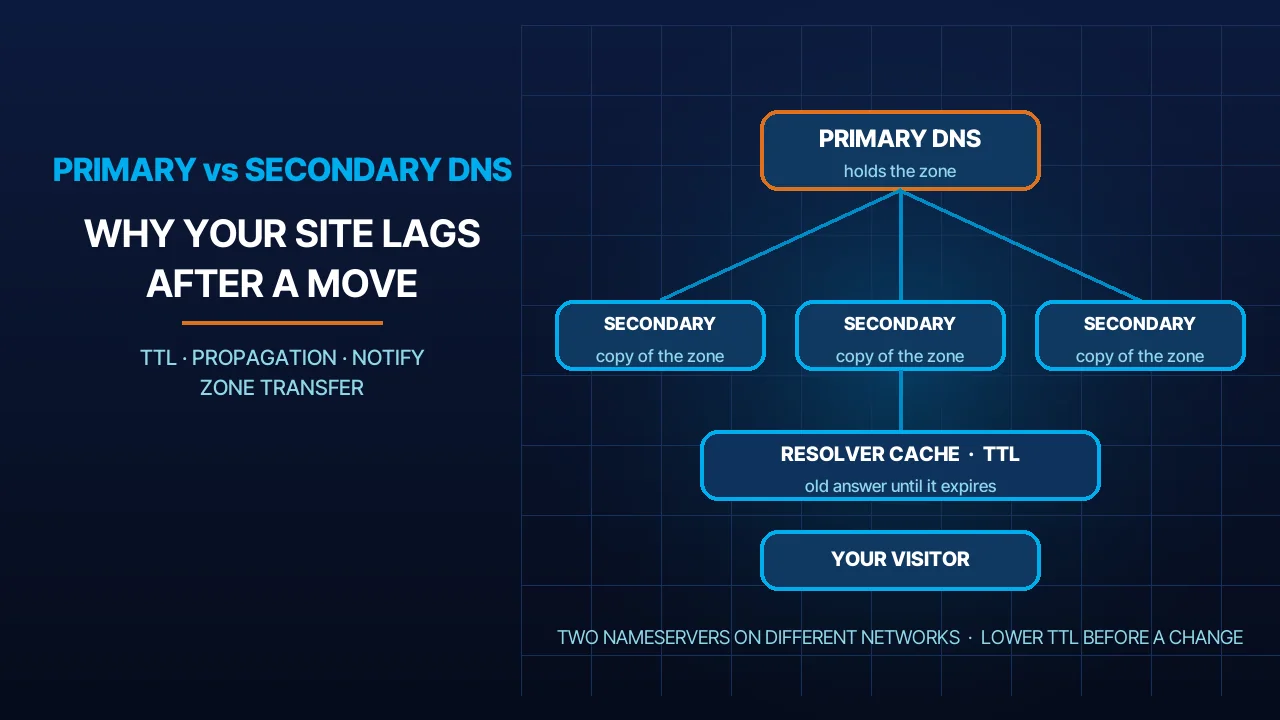
When someone types your domain, their computer asks a resolver, which asks the root servers which nameservers handle .ae, which answer with the nameservers for your domain, which finally return the actual record. The answer is then cached — by the resolver, by the operating system, by the browser — for a duration your records specify.
That caching is the source of most DNS confusion. When you change a record, the change is instant at your nameservers and gradual everywhere else. Some visitors see the new value in seconds; others keep seeing the old one until their cached copy expires. This is why “I changed it and it still shows the old site” is normal rather than broken.
The Records That Matter
A record — the domain points at a server
An A record maps a name to an IPv4 address: its.ae → 116.202.222.249. This is what makes your website load. Most domains have at least two: one for the bare domain and one for www.
The mistake: changing hosting and updating the A record for the bare domain but not for www, or the reverse. Half your visitors reach the new site and half reach the old one, and which half depends on how they typed the address. Always check both.
AAAA record — the same thing for IPv6
Identical in purpose, for the newer address format. If your host provides IPv6, having a correct AAAA record is good. Having a stale one is worse than having none, because devices on IPv6 networks will prefer it and reach the wrong server. When you migrate hosting, either update the AAAA record or delete it.
CNAME record — one name points at another name
A CNAME says “this name is an alias for that name”: www.its.ae → its.ae. It is how subdomains are pointed at external services — a status page, a help desk, a marketing platform.
Two rules that trip people up. A CNAME cannot coexist with other records on the same name, which is why you cannot normally put a CNAME on your bare domain — the domain already needs MX and other records there. And a CNAME pointing at a name that no longer exists produces a failure that is confusing to diagnose, because the record itself looks perfectly valid.
MX record — where your email is delivered
MX records tell other mail servers which machine accepts email for your domain. They carry a priority number, and lower means preferred: a server at priority 10 is tried before one at 20.
The mistake that costs the most: changing hosting providers and letting the new host create default MX records pointing at itself, while your email actually lives with Microsoft 365 or Google Workspace. Incoming mail is silently redirected to a mailbox nobody monitors on the new server. It does not bounce. It does not error. It simply stops arriving, and you find out days later when a customer asks why you never replied.
Before any hosting migration, write down your current MX records. After the migration, check them again. This one habit prevents the single most damaging DNS incident a business experiences.
TXT records — verification and email authentication
TXT records hold arbitrary text, and two uses matter.
Domain verification. Google, Microsoft and others ask you to add a specific string to prove you control the domain. Harmless, and safe to leave in place once added.
Email authentication — SPF, DKIM and DMARC. These are the records that decide whether your email reaches inboxes or spam folders. SPF lists which servers may send mail as your domain. DKIM adds a cryptographic signature that proves a message was not altered. DMARC tells receiving servers what to do when a message fails those checks, and where to send reports.
Since 2024, the major mailbox providers require authentication for bulk senders and increasingly penalise its absence for everyone else. If your business email lands in spam and you have not looked at these three records, that is where to look first.
The classic SPF mistake: more than one SPF record on a domain. The specification allows exactly one, and two records mean the check fails — often after somebody adds a second one for a new marketing tool instead of merging it into the existing record.
NS records — who is in charge of your DNS
NS records name the servers that hold the authoritative answers for your domain. They are set at your registrar, and they determine which control panel actually controls your domain.
This is the record that produces the most wasted hours. A business edits DNS records in their hosting control panel, sees nothing change, and concludes DNS is broken — when the domain’s nameservers point somewhere else entirely, usually at the registrar or at a CDN added years ago. The records being edited are real; they are simply being ignored, because nobody is asking that server.
Before editing any DNS record, confirm where your nameservers point. Edit in the wrong place and nothing you do has any effect.
CAA records — who may issue your SSL certificates
A CAA record restricts which certificate authorities are allowed to issue certificates for your domain. Optional, quiet, and a genuine security improvement: it prevents a certificate being issued for your domain by an authority you never intended to use. Worth adding once you know which authority your provider uses.
TTL: Why Changes Take Time
Every record has a Time To Live — how long resolvers may cache the answer. A TTL of 3600 means one hour.
The practical technique matters when you are planning a move: lower the TTL before you migrate, not during. Drop it to 300 seconds at least a day ahead, do the migration, confirm everything works, then raise it back. If you lower the TTL at the same time as making the change, the old long TTL is already cached and the change still takes hours to propagate.
Also worth knowing: “propagation” is not a process that runs. Nothing is being pushed anywhere. Old cached answers are simply expiring at different times in different places.
Check Your Own Domain in Ten Minutes
Do this now for any domain your business depends on:
1. Confirm your nameservers. Check at your registrar which nameservers the domain uses, and confirm that is where you have been editing records.
2. Check both A records. The bare domain and www should resolve to the correct server. Load both in a browser.
3. Write down your MX records. Confirm they point at the provider that actually holds your mailboxes. Keep this note somewhere you will find it before your next migration.
4. Check for exactly one SPF record. One, not zero and not two, and it should list every service that sends mail as you — your mail provider, your website’s contact form, your newsletter tool, your invoicing system.
5. Check whether DMARC exists at all. Many business domains have none. A monitoring-only DMARC record is safe to add and tells you who is sending mail as your domain.
6. List every subdomain record. Look for entries pointing at services you no longer use. A subdomain pointing at an abandoned server is a real security exposure, not just clutter.
If any of those checks produce an answer you cannot explain, that is worth resolving before it produces an incident.
Frequently Asked Questions
How long does a DNS change take to take effect?
As long as the old record’s TTL, plus a little. Your nameservers answer with the new value immediately; resolvers elsewhere keep serving the cached answer until it expires, so a 3600-second TTL means up to an hour of mixed results. Lower the TTL to 300 a day before a planned change and the window shrinks to minutes.
Can a domain have two SPF records?
No. RFC 7208 allows exactly one SPF record per domain, and receiving servers treat two as a permanent error, so the check fails outright. When a new tool needs to send mail as your domain, merge its include: mechanism into the existing record instead of adding a second one, and keep the total at no more than ten DNS lookups.
Do I need a DMARC record if I already have SPF and DKIM?
Yes, for two reasons. SPF and DKIM only check; DMARC tells receivers what to do when both fail and, through its reports, shows you who is sending mail as your domain. Start with p=none, which changes nothing about delivery, review the reports for a few weeks, then move to quarantine or reject once legitimate senders are covered.
Sources
- IETF RFC 1035 — Domain Names: Implementation and Specification (accessed 2026-09-15)
- IETF RFC 7208 — Sender Policy Framework (SPF), section 3.2 (one record per domain) (accessed 2026-09-15)
- IETF RFC 7489 — Domain-based Message Authentication, Reporting, and Conformance (DMARC) (accessed 2026-09-15)
- IETF RFC 8659 — DNS Certification Authority Authorization (CAA) Resource Record (accessed 2026-09-15)
- Microsoft Learn — Add DNS records to connect your domain (Microsoft 365) (accessed 2026-09-15)
- Google Workspace Admin Help — Email sender guidelines (accessed 2026-09-15)
Where We Fit
BIGBANG ITS manages domains, DNS, hosting and business email for companies across the UAE — which in practice means we spend a lot of time fixing DNS that was configured once, years ago, by someone who has since moved on.
If your email is landing in spam, your site is behaving differently for different people, or you simply do not know who controls your domain’s DNS, those are all answerable questions. Get in touch and we will check it with you.
Talk to us directly — we usually reply within minutes during business hours.