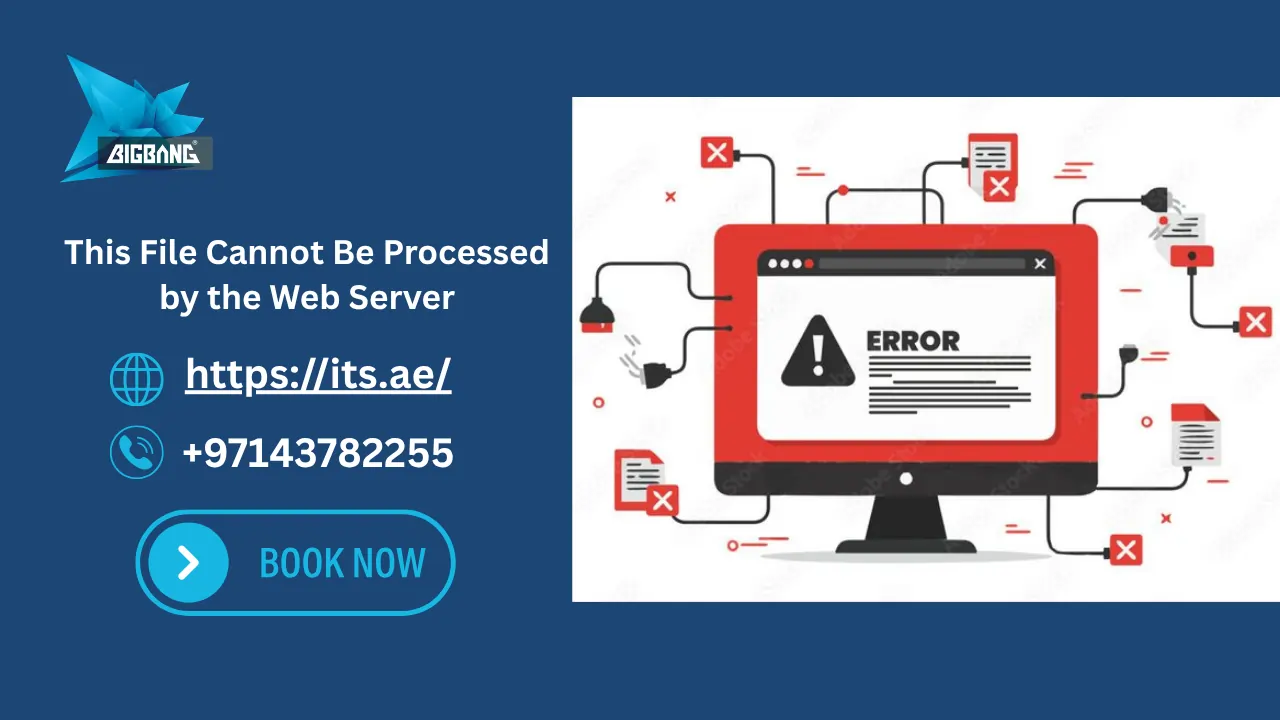
If your WordPress website suddenly shows the error “this file cannot be processed by the web server”, you may be facing a critical upload or server configuration issue that can directly affect your website performance and content management.
This issue is one of the most common WordPress upload errors, especially when dealing with file types like SVG, WebP, or MP4. While it may seem like a simple file issue, it often points to deeper problems related to server configuration, file permissions, or hosting limitations.
What Does “This File Cannot Be Processed by the Web Server” Mean?
The error this file cannot be processed by the web server WordPress means that your server is unable to process or generate the file you’re trying to upload.
You may also see similar variations such as:
- WordPress the server cannot process the image
- this image cannot be processed by the web server convert it to JPEG or PNG before uploading
- the web server cannot generate responsive image sizes for this image
In most cases, the issue occurs during image processing rather than simple file uploading.

WordPress This File Cannot Be Processed by the Web Server – Fix
This error occurs when the WordPress media library cannot process uploaded files due to server restrictions, unsupported formats, or missing image processing modules like GD Library or ImageMagick.
Quick Fix for This File Cannot Be Processed by the Web Server
- Reduce image size before uploading
- Convert file to JPG or PNG
- Increase PHP memory limit
- Check GD Library or ImageMagick support
- Disable conflicting plugins
Why Does This Error Occur in WordPress?
The WordPress error this file cannot be processed by the web server can occur due to several reasons:
1. Unsupported File Types
Certain file formats are restricted or not fully supported, such as:
- SVG
- WebP (on outdated servers)
2. File Size Limitations
Large files may exceed server limits, especially for:
- Images
- Videos (MP4)
Large files consume more resources and bandwidth, which is why understanding what is a website bandwidth helps you avoid upload limitations.
3. Server Configuration Issues
Missing or misconfigured components like:
- PHP extensions
- Image processing libraries (GD / ImageMagick)
These issues are often discussed when comparing solutions like WordPress hosting vs cPanel hosting, since hosting type directly affects server capabilities.
4. Plugin or Theme Conflicts
This is common with page builders like:
- this file cannot be processed by the web server elementor
5. Security Restrictions
Errors like:
- This file is not allowed for security reasons
- Sorry, you are not allowed to upload this file type
In some cases, upload errors may also occur when the server becomes overloaded or temporarily unavailable, which is similar to issues explained in What does server stopped responding mean.
Fix “WordPress This File Cannot Be Processed by the Web Server” Error
This error “wordpress this file cannot be processed by the web server” usually appears when WordPress cannot process uploaded files due to server limitations, missing image libraries, or unsupported file formats such as SVG or WebP.
File Types That Commonly Trigger the Error (SVG – WebP – MP4)
WordPress SVG Error
- Many users searching for “wordpress upload svg this file cannot be processed by the web server” experience this issue because WordPress blocks SVG uploads by default for security reasons.
- SVG files are one of the most common file types that trigger this error in WordPress because the platform blocks SVG uploads by default for security reasons.
- This error frequently appears when uploading SVG files in WordPress, especially on servers with strict security restrictions.
WordPress blocks SVG by default due to security concerns.
WebP Images
WebP images may trigger errors like “WordPress the server cannot process the image” on outdated hosting environments that do not fully support modern image optimization libraries.
This issue is especially common on older shared hosting servers running outdated PHP versions or missing ImageMagick support.
MP4 Files
Large MP4 files may trigger the error “this file cannot be processed by the web server” due to upload size restrictions, insufficient PHP memory, or hosting environments that limit media processing capabilities.
Why Does WordPress Block Certain Files? (MIME Types Explained)
WordPress uses MIME types to determine which files are allowed.
If there’s a mismatch, you’ll see:
- This file is not allowed for security reasons
This prevents potentially harmful files from being uploaded.
Several WordPress upload errors may look similar, but each one has a different cause and solution. Understanding the difference can help you troubleshoot the issue faster.
Difference Between Common WordPress Upload Errors
| Error Message | Cause | Solution |
| this file cannot be processed by the web server | Server cannot process file | Fix server configuration |
| sorry, you are not allowed to upload this file type | File type restricted | Enable MIME types |
| the web server cannot generate responsive image sizes | Image processing issue | Install GD / ImageMagick |
Why You Are Seeing This Error in WordPress
If you are searching for “wordpress this file cannot be processed by the web server”, this error usually appears when WordPress fails to process uploaded files like images or videos. It commonly affects SVG, WebP, and MP4 files due to server limitations or missing image processing libraries.
How to Fix “This File Cannot Be Processed by the Web Server” Step by Step
1. Reduce Image Size
Large images often trigger:
- WordPress the server cannot process the image
2. Convert File Format
Fix:
- this image cannot be processed by the web server convert it to JPEG or PNG before uploading
3. Fix MIME Types
Allow restricted file types manually or via plugin.
4. How to Upload an SVG File in WordPress Without a Plugin
Add this code:
function add_svg_to_upload_mimes($mimes) {
$mimes[‘svg’] = ‘image/svg+xml’;
return $mimes;
}
add_filter(‘upload_mimes’, ‘add_svg_to_upload_mimes’);
Only use this if you understand WordPress security implications.
5. Fix Elementor Issue
If you see:
this file cannot be processed by the web server elementor
Try:
- Disabling plugins
- Updating Elementor
6. Increase PHP Memory Limit
define(‘WP_MEMORY_LIMIT’, ‘256M’);
7. Check Server Support
In many real-world cases, websites hosted on outdated shared hosting plans experience this issue more frequently due to limited server resources and disabled image processing modules.
Ensure your server supports:
- GD Library
- ImageMagick
WordPress the Server Cannot Process the Image – Quick Fix
This variation:
WordPress the server cannot process the image
Can be fixed by:
- Reducing image size
- Updating PHP version
- Using a better hosting environment
Hosting environments directly affect file processing capabilities, server performance, and MIME type handling in WordPress.
WordPress Upload SVG This File Cannot Be Processed by the Web Server (Fix)
Without Plugin
Manually enable SVG via MIME types.
With Plugin
Use plugins to safely allow SVG uploads.
A common variation of this issue is:
- This file cannot be processed by the web server SVG
In some cases, users also search for:
- wp this file cannot be processed by the web server, especially after installing themes or plugins.
This File Can’t Be Previewed Because There Is No Previewer Installed for It
This issue occurs when:
- The server cannot generate previews for certain file types
Fix by:
- Using supported formats
- Checking server capabilities
Is the Problem Caused by Your Hosting Provider?
In many cases, yes.
If you keep seeing: this file cannot be processed by the web server WordPress
It may indicate:
- Limited server resources
- Outdated infrastructure
- Missing image processing support
Many businesses upgrade to solutions like the best web hosting in UAE for WordPress to avoid such server limitations completely.
Some upload and server issues may also appear when hosting services become unstable, suspended, or expired, which is explained in what happens if hosting expires.
Why Choosing the Right Hosting Matters
Poor hosting often leads to repeated upload errors.
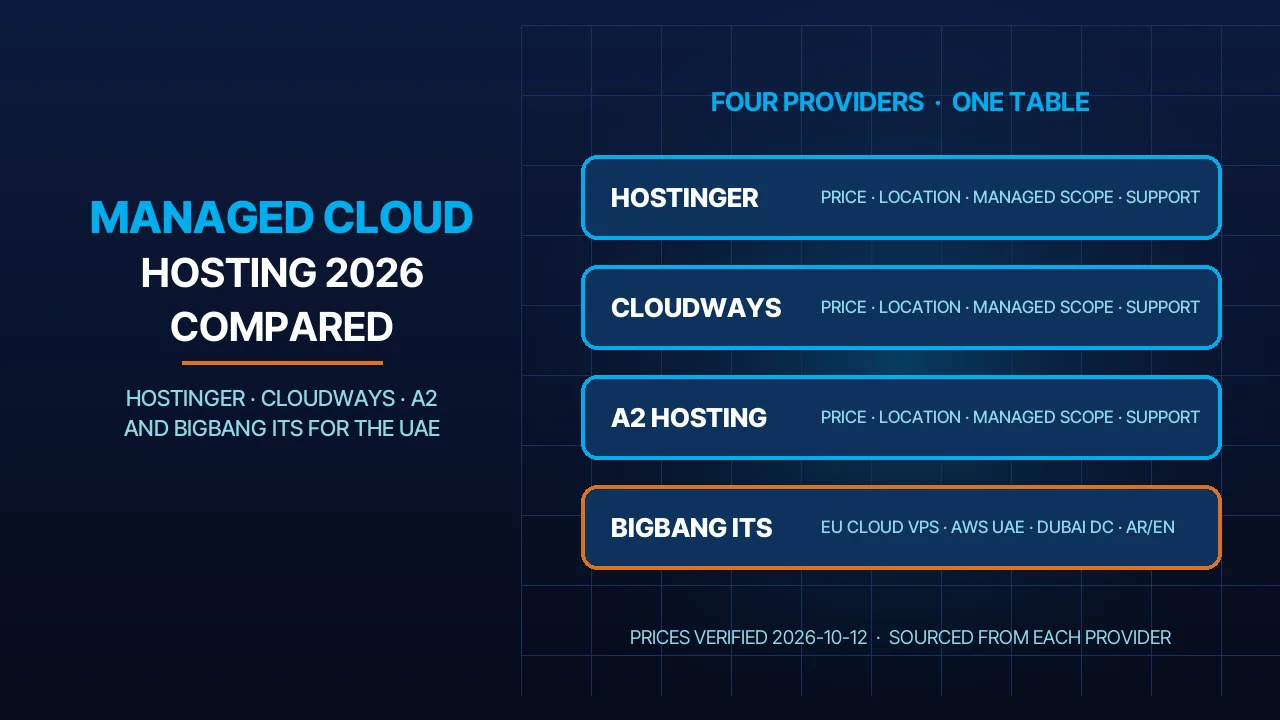
Understanding concepts like how to select a web hosting company or reviewing what are the top 10 web hosting companies can help you avoid these issues before they happen.
Why Choose ITS for Reliable Hosting & Server Solutions?
If the issue continues even after applying all WordPress fixes, the problem may be related to your hosting infrastructure rather than the file itself.
Businesses facing recurring server limitations often evaluate infrastructure upgrades by comparing Cloud vs Dedicated Server Cost to choose a more scalable and reliable hosting environment.
Many low-quality hosting environments lack proper image processing support, modern PHP configurations, or sufficient server resources required by WordPress.
If you want to eliminate errors like this file cannot be processed by the web server, your hosting infrastructure plays a critical role.
ITS provides:
- Optimized hosting environments for WordPress
- Full support for modern file formats (SVG, WebP, MP4)
- Advanced server configurations for high-performance websites
For enterprise and performance-focused websites, solutions like web hosting services for financial marketing platforms or top enterprise hosting for high traffic sites are often recommended to ensure stability under heavy traffic.
Strong Industry Partnerships & Certifications
ITS is trusted by leading technology ecosystems, including:
- Official partner with 3CX, a global leader in communication solutions
- Certified across the Middle East for enterprise-grade digital solutions
- Providing expert support for business-critical platforms and high-demand environments
When Should You Switch Hosting Providers?
You should consider switching if:
- Errors keep happening
- Your server doesn’t support modern formats
- Technical support is slow or ineffective
You may also evaluate providers by comparing domain names and hosting prices before choosing.
How to Prevent This Error in the Future
- Optimize images before uploading
- Use supported file formats
- Keep WordPress updated
- Choose a reliable hosting provider
For small businesses, options like the best email and website hosting for small business can provide a stable starting point.
How to Check If Your Server Supports Image Processing?
To properly process images and generate responsive thumbnails, WordPress depends on server-side image libraries such as GD Library and ImageMagick.
You can check whether your server supports these tools by:
- Going to Tools → Site Health in WordPress
- Checking your PHP configuration
- Contacting your hosting provider
If these libraries are missing or outdated, WordPress may fail to process uploaded images correctly.
What does “the web server cannot generate responsive image sizes” mean?
This error occurs when WordPress cannot create image sizes due to missing GD Library or ImageMagick support on the server.
Conclusion
The WordPress error this file cannot be processed by the web server is more than just a simple upload issue — it often indicates deeper server or hosting limitations.
To fix it permanently, you need:
- Proper configuration
- Optimized files
- Most importantly, a reliable hosting partner
With ITS.ae, businesses can run WordPress websites on a stable, optimized, and scalable hosting infrastructure designed to handle modern file formats and demanding website performance requirements.
FAQs
What does “this file cannot be processed by the web server mp4” mean?
This error usually appears when uploading large MP4 files to WordPress or another CMS. It means the server cannot properly process the video file due to upload size restrictions, insufficient PHP memory, unsupported codecs, or hosting limitations.
How to fix web server is returning an unknown error?
You can fix this issue by clearing cache, checking server logs, increasing PHP memory limits, disabling conflicting plugins or themes, and updating your PHP or WordPress version.
In many cases, the error is caused by temporary server configuration problems or corrupted files.
What does “this file cannot be processed by the web server” mean in WordPress?
In WordPress, this error means the server failed to process the uploaded file correctly. The issue is commonly related to unsupported file types, image processing failures, low server resources, or missing libraries such as GD Library or ImageMagick.
How do I fix a requested URL not found on this server?
You can fix this issue by checking the URL for typing errors, resetting WordPress permalinks, verifying the .htaccess file, restoring missing files, and clearing cache or CDN settings.
In WordPress, resetting permalinks often fixes this error quickly.
Talk to us directly — we usually reply within minutes during business hours.