On Sunday an office manager in Business Bay gets a WhatsApp from a “bank officer”: there is a problem with the company account, please install AnyDesk so he can fix it. On Tuesday her IT provider asks her to install the same app so a technician can look at the printer queue. Same app, same request; only one is safe. This article explains how remote IT support works, how to let a technician into your computer without handing it to a stranger, and how to end access when the job is done.
Quick Answer
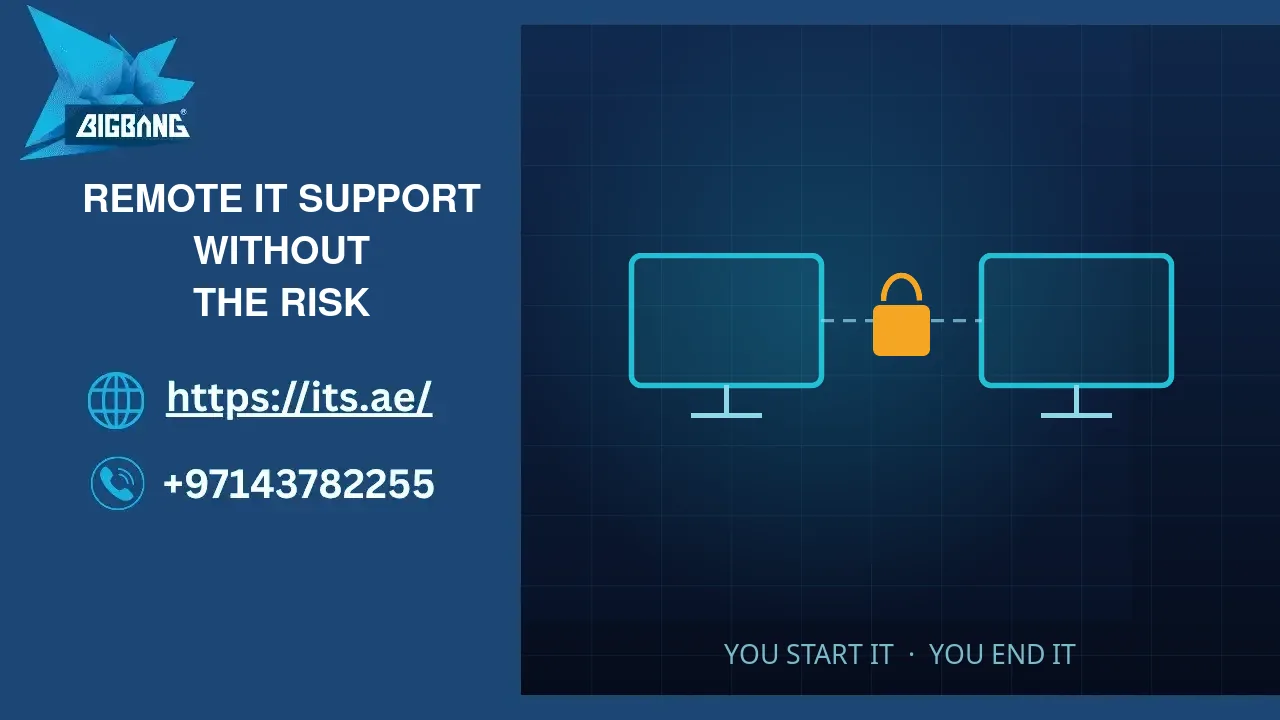
Remote IT support is safe when you start it: you call your provider on a number you already have, you download the tool from a page you reached yourself, and you stay at the screen while the technician works. There are 2 kinds. An attended session, for example AnyDesk, needs you to read a code and approve the connection, and ends when you close the app. Unattended access uses an RMM agent installed under a written support contract, so the provider can monitor, patch and fix the device without anyone at the desk. Our support apps page lists the tools we use. Treat anyone who calls first asking you to install one as a stranger until your provider confirms.
Two Kinds of Remote IT Support
Attended sessions are for one problem, fixed now. You open the app, read the code on your screen to the technician, and approve the connection when it arrives. You watch everything; when you close the app, the technician is out.
Unattended access is for ongoing care. A small RMM (remote monitoring and management) agent is installed on each device under a support contract. It lets the provider see that disks are filling up, apply updates at night and reach a laptop when nobody is at the desk. It is also a standing door, so it needs rules on paper.
| Type | Who starts it | Who must be at the screen | Use it for | Remove it when |
|---|---|---|---|---|
| Attended session (e.g. AnyDesk) | You, after calling your provider | You, for the whole session | One problem, fixed while you watch | The session ends: close the app |
| Unattended access (RMM agent) | Your provider, under a written contract | Nobody | Monitoring, updates, fixes out of hours | The contract ends or the device leaves the company |
How the Scam Works
The scam uses the same legitimate tools, and it follows a pattern.
An unexpected contact. A call, a WhatsApp message or a browser pop-up claims to be from your bank, your internet provider or a well-known software company. The US Federal Trade Commission notes that tech support scams start with a fake pop-up warning, a call or a text, and that real security warnings never ask you to call a phone number.
Urgency. Your account is blocked, or a refund is waiting, and it must be done now.
“Install this app.” The caller sends a link or spells out the name of a real remote-support tool.
“Now log in to your bank.” CISA, the US cyber security agency, described a campaign in which criminals used legitimate remote tools, including AnyDesk, in a refund scam: the victim logged in to the bank while connected, the attackers altered the account summary to show an excess refund, and asked for the difference back.
It happens here too. In April 2026 Abu Dhabi Police warned residents about remote control apps used by scammers posing as technical support or service providers, and stressed that banks do not ask for passwords, PINs or one-time codes.
Rules for an Attended Session
You make the call. Phone your provider on the number you already have, not one from a message or a pop-up. Ours is +971 4 378 2255.
Download from a page you reached yourself. Use the vendor’s site or your provider’s site, typed or bookmarked. Our AnyDesk download for macOS sends you to the file on AnyDesk’s own website, so you get the vendor’s file, not a copy.
Read the code yourself. You read the number on your screen to the technician; nobody should need to send you one.
Approve only what is needed. If the app offers choices such as file transfer or clipboard, allow only what the job needs.
Stay and watch. If the pointer goes somewhere you did not expect, end the session.
No banking, no passwords. Never open online banking or type a password the technician can see while connected. A genuine technician has no reason to ask.
End it properly. Close the session and quit the app. If you will not need it again soon, uninstall it.
Report the odd call. Tell your provider about any call or message you did not expect, even if you hung up.
Rules for Unattended Access
An RMM agent is a key the provider keeps. Treat it like a key to the office.
It is in the contract. The support contract names the agent, what it is used for and when the provider may connect.
One agent, on named devices. Keep a list of every device with the agent, and one agent per device. Two remote tools from two providers on one laptop is a door nobody watches.
Named people at the provider. Ask who can connect, and how you will know they did.
Two-factor on the provider’s console. CISA advises requiring multi-factor authentication for all users, starting with administrative and remote access users. The console that reaches all your devices is exactly that. Our guide to two-factor authentication for business covers the methods.
Review every quarter. Compare the agent list with the device list. Anything you cannot match is removed.
Uninstall on the last day. When the contract ends, or a laptop leaves the company, the agent goes the same day.
When we agree unattended access, a Windows PC gets our agent from the Windows RMM agent page. On a Mac, the RMM agent for macOS page lists the supported macOS versions, so check yours there before you install.
What We Do
This is how our team works; ask your provider about theirs.
We start from your request. Our team does not phone or message you first asking you to install software. If someone says they are from BIGBANG ITS and asks you to install an app, hang up and call us back on the number on our FAQ page, or reach us by ticket, live chat or WhatsApp.
Our support team starts sessions from a ticket, so each one is linked to a request you or a colleague raised.
We log sessions, so either of us can check later who connected and when.
For unattended care, our Annual Maintenance Contract covers networks, servers and workstations with a guaranteed response time; ask us to list in it every remote tool we install.
From Our Work
The bank officer who was not. A staff member at a client company received a WhatsApp from a “bank officer” asking her to install a remote app. She did not install it. She called our support line instead, and we confirmed the request had not come from us. That is the reflex we want.
A former contractor’s agent. When we took over support for a company, we built a device inventory as part of onboarding. On the reception PC we found an unattended remote agent from a former contractor, still installed months after that contract had ended. We removed it during onboarding. An inventory finds what nobody remembers installing.
The Mac that said no. During an attended session on a Mac, the technician could see nothing and control nothing until the user granted Screen Recording and Accessibility permission in macOS settings. That prompt is a protection, not a fault: Apple lets you decide which apps may record your screen, and asks you to grant accessibility control only to apps you know and trust.
Frequently Asked Questions
Is remote IT support safe?
It is safe when you start it, with a provider you already know, through a tool downloaded from the vendor’s or the provider’s own site, and you stay at the screen. The risk comes from sessions someone else starts: an unexpected call, message or pop-up asking you to install an app. Those you refuse, then report to your provider.
How do I know the person asking for remote access is really my IT provider?
Hang up and call them back on the number you already have, from your contract, an invoice or their website typed by hand. Do not use a number or link from the message. A real provider can link the session to a ticket you raised. If nobody at the provider knows about the request, it was not them.
What should I do if I already let a stranger into my computer?
Disconnect the computer from the internet, uninstall the remote app, and call your bank at once if you opened banking. From a different, clean device, change the passwords you used. Then call your IT provider to check the machine. Our first-hour response runbook sets out the order of steps.
Why does my Mac ask for Screen Recording and Accessibility permission?
macOS does not let an app see your screen or control the mouse and keyboard until you allow it in Privacy and Security settings. Remote support needs both. Grant them only to an app you downloaded for a session you started, and turn them off again in the same settings if you no longer use the app.
Should I uninstall AnyDesk after the session?
If you will not need it again soon, yes. At minimum, quit the app so nobody can request a session. For devices your provider supports every day, an RMM agent under a written contract is the better route, because it is listed, reviewed every quarter and removed on the day the contract ends.
Sources
- Protecting Against Malicious Use of Remote Monitoring and Management Software (AA23-025A) — Cybersecurity and Infrastructure Security Agency (CISA) (accessed 2026-10-03)
- How To Spot, Avoid, and Report Tech Support Scams — US Federal Trade Commission (accessed 2026-10-03)
- Abu Dhabi Police warn: This common app could let scammers empty your bank account — Gulf News (accessed 2026-10-03)
- Cyber Essentials — Cybersecurity and Infrastructure Security Agency (CISA) (accessed 2026-10-03)
- Control access to screen and system audio recording on Mac — Apple Support (accessed 2026-10-03)
- Allow accessibility apps to access your Mac — Apple Support (accessed 2026-10-03)
Where We Are
BIGBANG ITS has planned and run technology for UAE businesses since 2003, headquartered at the Sharjah Research, Technology and Innovation Park with a branch in Business Bay, Dubai. Support runs 24/7 and the office is open Saturday to Thursday, 09:00–18:00 Gulf time. For remote and onsite support under one contract, with written rules for each remote tool, contact us or call +971 4 378 2255.
Talk to us directly — we usually reply within minutes during business hours.