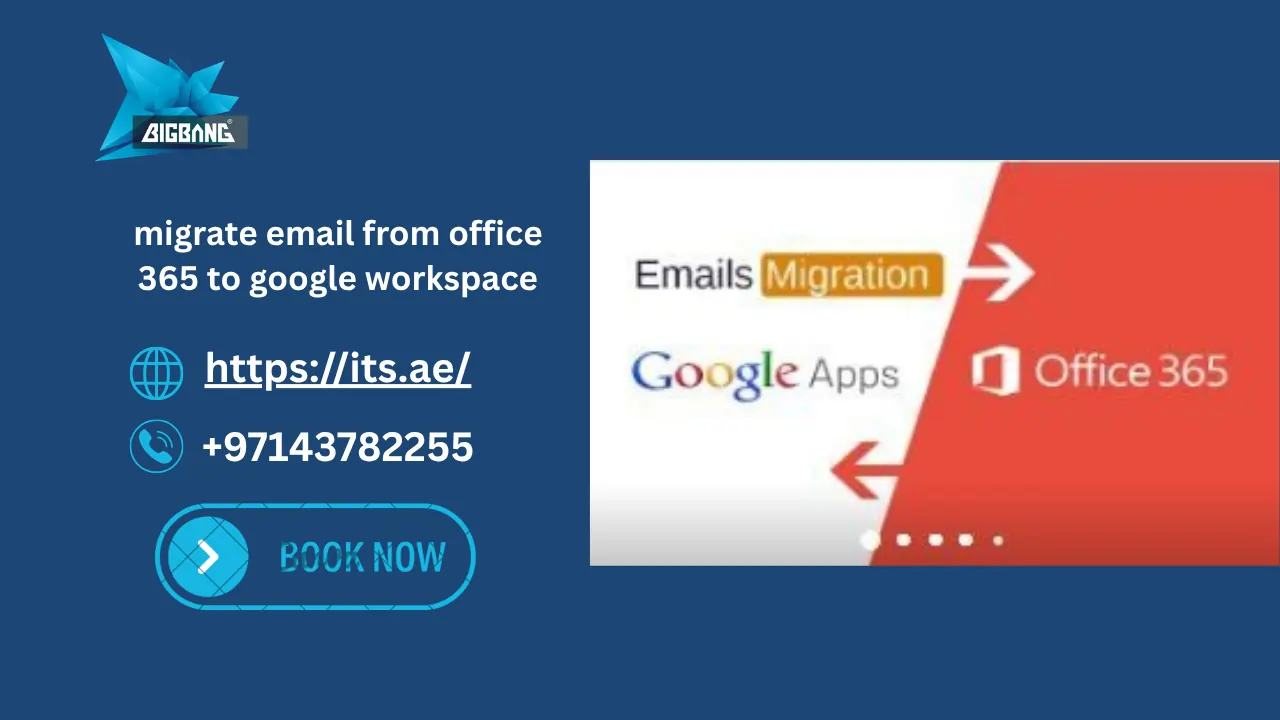
Migrating email from Office 365 to Google Workspace can improve collaboration, reduce costs, and simplify IT management. Done correctly, it helps prevent downtime, protect business data, and ensure a smooth transition for every user. Google Workspace offers powerful collaboration tools, AI capabilities, secure cloud storage, and seamless access across devices. In this guide, you’ll learn the migration methods, preparation steps, best practices, and how to complete the process with minimal disruption.
Quick Answer
Migrating email from Office 365 to Google Workspace involves transferring Exchange Online mailboxes, contacts, calendars, and attachments to Gmail using Google’s data import tool (formerly the Data Migration Service), GWMMO, or a third-party migration tool. The process includes verifying your domain, creating users, migrating mailbox data, updating MX records, and validating email delivery.
What Is Office 365 to Google Workspace Email Migration?
Office 365 to Google Workspace email migration is the process of transferring business email data from Microsoft Exchange Online (Microsoft 365) to Gmail within Google Workspace.
Depending on the migration method you choose, the process can transfer:
- Emails
- Mail folders
- Contacts
- Calendars
- Attachments
- User accounts
Some advanced migration projects can also include file migration from OneDrive to Google Drive, SharePoint to Shared Drives, and Microsoft Teams data using Google’s own OneDrive, SharePoint Online and Teams imports in the Admin console or specialized third-party migration tools.
The goal is to move business communication to Google Workspace while maintaining business continuity and minimizing downtime.

Why Migrate from Office 365 to Google Workspace?
Many businesses are switching from Microsoft 365 to Google Workspace to improve productivity and simplify collaboration.
Some of the biggest benefits include:
Better Collaboration
Google Docs, Sheets, Slides, Meet, and Drive allow teams to collaborate in real time without managing multiple document versions.
A professional email setup is essential before moving to Google Workspace. To understand this better, learn more about what is a business email address.
Lower IT Administration
Google Workspace is easier to manage through a centralized Admin Console, reducing administrative overhead.
AI-Powered Productivity
Google Workspace includes Gemini AI features that help users summarize emails, draft responses, create documents, and improve daily productivity.
Flexible Cloud Access
Employees can securely access their email and files from anywhere without relying on traditional office infrastructure.
Cost Optimization
Many businesses reduce licensing costs by moving from Microsoft 365 to Google Workspace, especially when they primarily use email and collaboration tools.
Many businesses compare options to understand what is the best email service for small business before switching platforms.
What Data Can You Migrate?
Before starting your migration, it’s important to understand what information can be transferred.
| Data | Can Be Migrated |
| Emails | ✅ |
| Attachments | ✅ |
| Contacts | ✅ |
| Calendars | ✅ |
| Mail Folders | ✅ |
| Shared Mailboxes | Partial |
| Distribution Lists | Partial |
| OneDrive Files | Google’s OneDrive import or specialized tools |
| SharePoint Libraries | Google’s SharePoint Online import or specialized tools |
| Microsoft Teams Data | Partial — Google’s Teams import or third-party tools |
Choosing the right migration approach depends on the amount of data, the number of users, and your business requirements.
Before You Migrate: Essential Requirements
A successful migration begins with proper preparation.
Before using any Google Workspace migrate tool or the data import tool (formerly the Data Migration Service), make sure you complete the following checklist:
- Verify your domain in Google Workspace.
- Create Google Workspace user accounts.
- Assign Google Workspace licenses.
- Ensure Global Administrator access to Microsoft 365.
- Review Exchange Online permissions.
- Back up critical business data.
- Audit mailbox sizes.
- Document current DNS and MX records.
- Inform employees about the migration schedule.
- Plan a rollback strategy in case of unexpected issues.
Preparing these items significantly reduces migration risks and helps ensure a smooth cutover.
If you are also changing hosting, check how to transfer your domain to another host.
Best Ways to Migrate Email from Office 365 to Google Workspace
There are several ways to migrate business email from Microsoft 365 to Google Workspace. The best option depends on your organization’s size, mailbox volume, technical requirements, and acceptable downtime.
Below are the most common migration methods used by businesses.
Google Workspace Data Import Tool (formerly Data Migration Service)
The Google Workspace Data Migration Service is Google’s built-in migration solution, now called the data import tool in the Admin console, designed to transfer email, calendar and contact data directly from Microsoft Exchange Online and other supported email platforms.
It is one of the easiest options for small and medium-sized businesses because it is included with Google Workspace and doesn’t require additional software.
Best for
- Small and medium businesses
- Standard mailbox migration
- Organizations with limited IT resources
What You Can Migrate
- Emails
- Mail folders
- Attachments
- Calendar events
- Contacts
- To Do tasks
Advantages
- Free with Google Workspace
- Easy to configure
- Secure Google-managed migration
- Progress tracking from the Admin Console
Limitations
- The default Exchange Online import handles up to 1,000 users at a time; larger tenants need the advanced method or Google Workspace Migrate
- OneDrive, SharePoint Online and Teams data are not part of the email import; they need Google’s separate file and chat imports or a third-party tool
Office 365 Migration from Exchange
Most Microsoft 365 environments use Exchange Online as their email platform. During an Office 365 migration from Exchange, emails, folders, contacts, calendars, and attachments can be transferred to Google Workspace using Google’s data import tool or professional migration tools.
Before starting the migration, administrators should verify Exchange Online permissions, review mailbox sizes, and configure administrator access to ensure a successful migration.
Migrate Email from Office 365 to Google Workspace Without Losing Emails
Many businesses worry that moving to Google Workspace may result in lost emails or interrupted communication. Fortunately, with proper planning, administrator permissions, mailbox validation, and Delta Sync, you can migrate email from Office 365 to Google Workspace without losing emails or causing significant downtime.
Using Google’s migration tools and testing the migration before updating MX records helps ensure every mailbox is transferred successfully.
Google Workspace Migration for Microsoft Outlook (GWMMO)
Google Workspace Migration for Microsoft Outlook (GWMMO) is Google’s Windows-only desktop utility that lets users import mail, calendar events and contacts from an Exchange account or a local PST file into Google Workspace.
Unlike the data import tool, GWMMO is ideal when organizations already have exported Outlook PST files or need to migrate individual mailboxes.
Best for
- PST migrations
- Outlook desktop users
- Archived mailbox imports
What Can Be Migrated
- Emails
- Contacts
- Calendars
- Contact notes as plain text (Outlook Notes, Tasks and Journal entries are not migrated)
- Folders (migrated as Gmail labels)
Advantages
- Supports large PST files, though messages larger than 25 MB are skipped
- Preserves Outlook folder structure
- Simple user-based migration
Limitations
- Requires Outlook profiles or PST files
- Not recommended for large enterprise migrations involving hundreds of users
Google Workspace Migrate Tool Comparison
| Tool | Best For | Migrates |
| Google data import tool (formerly Data Migration Service) | SMBs | Email, Calendar, Contacts |
| GWMMO | PST Files | Email, Contacts, Calendar |
| IMAP | Basic Email | Email Only |
| Third-party Tools | Enterprise | Email, Files, Teams, SharePoint |
IMAP Migration
IMAP migration is another option for organizations that only need to move email messages between platforms.
Instead of connecting directly to Microsoft 365, Google imports email through the IMAP protocol.
Best for
- Basic email migration
- Legacy email systems
- Small mailbox transfers
Advantages
- Compatible with many email providers
- Easy configuration
- No complex infrastructure required
Limitations
- Emails only
- Contacts and calendars are not migrated, and Google’s IMAP import takes up to 100 users per run
- Slower than Microsoft’s native connection
Third-Party Migration Tools
Large organizations often require advanced migration capabilities that go beyond email.
Professional migration platforms can transfer multiple Microsoft 365 services while preserving permissions and minimizing downtime.
These tools can migrate:
- Exchange Online
- OneDrive
- SharePoint
- Microsoft Teams
- Microsoft 365 Groups
- Calendars
- Contacts
Many enterprise migration tools also support Delta Sync, coexistence, scheduling, reporting, and automated validation.
Best for
- Large enterprises
- Multi-domain environments
- Mergers and acquisitions
- Hybrid migration projects
Office 365 to Gmail Migration
Many users search for Office 365 to Gmail migration when they actually mean migrating business email to Google Workspace. Since Gmail is the email service included with Google Workspace, both terms are often used interchangeably.
The migration process includes moving Exchange Online mailboxes, contacts, calendars, and attachments into Gmail while maintaining business continuity.
Which Migration Method Is Best for Your Business?
Choosing the right migration approach depends on your organization’s size and requirements.
| Business Size | Recommended Method |
| Up to 20 users | Google data import tool |
| 20–100 users | Google data import tool or partner-assisted migration |
| 100–500 users | Professional migration tools |
| 500+ users | Enterprise migration platform with staged migration and Delta Sync |
If your organization relies heavily on Microsoft services such as SharePoint, Teams, or OneDrive, working with an experienced migration partner helps reduce complexity and minimizes business disruption.
Need a secure Office 365 to Google Workspace migration? Request a free migration assessment from ITS.
8 Steps: How to Migrate Email from Office 365 to Google Workspace
After selecting the right migration method, you can begin moving your mailboxes. Following these steps carefully helps ensure a secure migration with little or no downtime.
Step 1: Create Your Google Workspace Account
If you haven’t already, create your Google Workspace organization and choose the plan that fits your business needs.
During setup, add your company domain and create administrator credentials.
Before migration, you need to know how to get a custom business email.
Step 2: Verify Your Domain
Google requires domain verification before any migration begins.
Log in to your domain registrar, add the TXT verification record provided by Google, and wait for verification to complete.
Choosing the best business email domain is important before starting migration.
Step 3: Create User Accounts
Create all employee accounts in Google Workspace before starting the migration.
Usernames should match the existing Microsoft 365 email addresses whenever possible to simplify the migration process.
Step 4: Grant Microsoft 365 Permissions
Google needs permission to access Exchange Online mailboxes.
The Microsoft Global Administrator must authorize the migration by signing in when the Admin console connects to Microsoft 365 and granting the required API permissions.
Without these permissions, the migration cannot access mailbox data.
Step 5: Start Google Workspace Migration
Open the Google Admin console, go to Menu > Data > Data import & export > Data import, and start an Exchange Online import with the data import tool (formerly the Data Migration Service).
Configure:
- Microsoft 365 as the source
- Google Workspace as the destination
- User mapping
- Migration scope
- Date range (optional)
Once configured, start the migration.
Google will begin copying mailbox data in the background.
Start the migration process by following this Transfer Email to Google Workspace guide for a more detailed walkthrough.
Step 6: Monitor Migration Progress
Monitor the migration dashboard for:
- Completed users
- Failed users
- Errors
- Remaining mailbox size
- Migration status
Resolve any authentication or permission issues before proceeding.
Step 7: Update MX Records
Once mailbox migration is complete, update your domain’s MX records to point to Google Workspace: Google’s current value is a single record, smtp.google.com with priority 1 (the older aspmx.l.google.com set still works), and the change can take up to 72 hours to be recognised.
This step directs all new incoming email to Gmail instead of Microsoft Exchange Online.
Keep the previous MX records documented in case you need to roll back.
Step 8: Test Email Delivery
Before announcing project completion, verify that everything works correctly.
Test:
- Sending email
- Receiving email
- Internal communication
- External communication
- Mobile devices
- Outlook (if applicable)
- Gmail web access
Once testing is complete, users can begin working entirely from Google Workspace.
Follow this migrate email to Office 365 step by step guide to ensure a smooth transition.
What Cannot Be Migrated
| Service | Migrated? |
| Teams Chat — partially, via Google’s Teams import (file attachments and bot messages are not copied) | Partial |
| Teams Channels — partially, imported as Google Chat spaces (one space per channel) | Partial |
| Power BI | ❌ |
| Power Automate | ❌ |
| Viva | ❌ |
Office 365 to Google Workspace Migration Checklist
Before switching your production email to Google Workspace, complete this checklist to reduce migration risks and avoid unexpected issues.
Pre-Migration Checklist
- Verify your domain in Google Workspace.
- Purchase and assign Google Workspace licenses.
- Create all user accounts.
- Confirm Microsoft 365 Global Administrator access.
- Review Exchange Online permissions.
- Back up critical mailboxes.
- Export important PST files if required.
- Audit mailbox sizes.
- Clean up inactive or duplicate accounts.
- Review distribution groups and shared mailboxes.
- Document current DNS and MX records.
- Inform employees about the migration schedule.
- Schedule the migration during off-peak business hours.
Post-Migration Checklist
After completing the migration:
- Update MX records.
- Verify email delivery.
- Test Gmail login for every user.
- Check calendars and contacts.
- Confirm mailbox folder structure.
- Verify mobile device synchronization.
- Configure email signatures.
- Enable Multi-Factor Authentication (MFA).
- Cancel unused Microsoft 365 licenses after successful verification.
Zero Downtime Migration Best Practices
One of the most common concerns businesses have is whether migrating from Office 365 to Google Workspace will interrupt email communication.
The good news is that, with proper planning, it’s possible to perform a migration with little or no noticeable downtime.
Here are the best practices to achieve a smooth transition:
Perform a Migration Assessment
Before moving any data, analyze:
- Number of users
- Mailbox sizes
- Shared mailboxes
- Distribution groups
- Existing DNS configuration
A detailed assessment helps identify potential risks early.
Run a Pilot Migration
Instead of migrating every mailbox at once, begin with a small group of users.
A pilot migration allows you to:
- Validate the process.
- Detect configuration issues.
- Estimate migration speed.
- Gather user feedback.
Use Delta Synchronization
If your migration tool supports Delta Sync, enable it; Google’s data import tool offers this as a delta import for Exchange Online.
Delta synchronization copies only new or changed emails after the initial migration, ensuring users receive recent messages before the final cutover.
Schedule the Final Cutover Carefully
Plan the MX record update outside normal working hours.
This minimizes disruption and gives your IT team time to resolve any unexpected issues before employees start work.
Keep Microsoft 365 Active Temporarily
Avoid canceling Microsoft 365 licenses immediately after the migration.
Maintaining temporary access provides a rollback option if any unexpected issues arise. Note that once a Microsoft 365 subscription ends it passes through Expired (30 days) and Disabled (90 days) states before the data is deleted, and users lose access in the Disabled stage (since 9 February 2026 the Expired stage no longer applies to subscriptions bought directly under a Microsoft Customer Agreement, so those tenants move straight to Disabled).
Common Migration Challenges and How to Avoid Them
Although Google provides reliable migration tools, businesses may encounter challenges during the migration process.
Understanding these issues in advance can help prevent delays.
Authentication Failed
Cause
Incorrect administrator credentials or missing Microsoft permissions.
Solution
Verify Global Administrator access and reauthorize the migration connection.
Large Mailboxes Slow the Migration
Cause
Mailboxes containing several years of email or large attachments require more processing time.
Solution
Estimate migration duration in advance and migrate large mailboxes separately if necessary.
Duplicate Emails
Cause
Running multiple migrations without proper configuration.
Solution
Use migration settings that prevent importing duplicate messages.
DNS Propagation Delays
Cause
After updating MX records, DNS resolvers may take up to 72 hours to recognize the new settings.
Solution
Reduce DNS TTL values before migration and allow time for propagation.
Missing Emails After Migration
Cause
Incomplete migration or interrupted synchronization.
Solution
Run a Delta Migration to copy any messages received after the initial migration.
Shared Mailboxes Require Additional Configuration
Some shared mailboxes require manual configuration after migration.
Review access permissions carefully before granting users access in Google Workspace.
How Long Does the Migration Take?
Migration duration depends on several factors, including mailbox size, internet bandwidth, server performance, and the migration method used.
The following estimates can help with planning:
| Number of Users | Estimated Duration |
| Up to 10 users | A few hours |
| 10–50 users | 1 business day |
| 50–100 users | 1–2 days |
| 100–500 users | Several days |
| 500+ users | Planned phased migration |
Large organizations often use staged migrations with Delta Sync to minimize downtime while maintaining business continuity.
Office 365 vs Google Workspace
If you’re still deciding whether to migrate, comparing the two platforms can help clarify which solution better fits your organization’s needs.
| Feature | Microsoft 365 | Google Workspace |
| Outlook | Gmail | |
| File Storage | OneDrive | Google Drive |
| Collaboration | Microsoft Teams | Google Meet |
| Document Editing | Office Apps | Google Docs, Sheets & Slides |
| AI Features | Microsoft Copilot | Gemini AI |
| Administration | Microsoft Admin Center | Google Admin Console |
| Browser Collaboration | Good | Excellent |
| Real-Time Editing | Available | Native Experience |
Both platforms are excellent productivity suites, but organizations that prioritize browser-based collaboration, simplicity, and integrated Google services often choose Google Workspace.
Cost of Migrating from Office 365 to Google Workspace
The total migration cost depends on several factors, including:
- Number of users
- Mailbox sizes
- Migration tools
- Complexity of the project
- File migration requirements
- SharePoint or Teams migration
- Professional migration services
Small businesses using Google’s data import tool may complete the migration with minimal additional costs, while larger organizations often benefit from working with an experienced migration partner to reduce risks and accelerate deployment.
The overall cost depends on Google business email pricing and the number of users.
Why Choose ITS for Office 365 to Google Workspace Migration?
Migrating business email is more than simply copying messages — it requires careful planning, secure execution, and post-migration support.
ITS helps businesses in the UAE migrate from Microsoft 365 to Google Workspace with minimal disruption and a structured migration process.
Our migration services include:
- Migration planning and assessment
- Google Workspace deployment
- Microsoft 365 mailbox migration
- Exchange Online configuration
- DNS and MX record updates
- User account provisioning
- Security best practices
- Post-migration validation
- Ongoing technical support
As an authorized Google Workspace reseller in the UAE and a certified partner serving businesses across Dubai, Abu Dhabi, and Sharjah, ITS provides end-to-end migration support tailored to the region’s business needs.
Whether you’re migrating a few users or hundreds of mailboxes, our team can help ensure a secure, efficient transition tailored to your business needs.
Office 365 to Google Workspace Migration for UAE Businesses
Businesses in the UAE operating under local compliance requirements need a migration partner that understands regional infrastructure, data residency, and telecom regulations.
ITS has helped organizations across Dubai, Abu Dhabi, and Sharjah transition to Google Workspace with zero data loss and minimal downtime.
Final Thoughts
Migrating your business email from Microsoft 365 to Google Workspace is a strategic move that can improve collaboration, simplify administration, and support long-term growth. Whether you use Google’s data import tool, GWMMO, or a third-party migration platform, success depends on careful planning, the right migration method, and proper validation. From preparing your environment and migrating user data to updating MX records and testing email delivery, a well-executed migration helps minimize disruption and ensure continuity. If you need secure, professional support, ITS can help you plan and complete your Office 365 to Google Workspace migration smoothly.
Planning to migrate from Office 365 to Google Workspace? ITS offers a free migration assessment for UAE businesses — covering mailbox audit, timeline planning, and risk evaluation. Contact our team today to get started.
Sources
- Google Workspace Help — Import your organization’s data to Google Workspace (data import tool: Exchange Online, Gmail, Google Workspace, IMAP, OneDrive, SharePoint Online, Teams) (accessed 2026-10-01)
- Google Workspace Help — Use the default data import method for Exchange Online (Admin console path, Global Administrator sign-in, up to 1,000 users, auto-mapping for 20 or fewer users, email/calendar/contacts/tasks) (accessed 2026-10-01)
- Google Workspace Help — Use the default data import method for Teams (chat data to Google Chat, up to 1,000 teams) (accessed 2026-10-01)
- Google Workspace Help — What’s imported from Teams? (channels import as spaces; bot messages, file attachments, tables and code snippets are not imported) (accessed 2026-10-01)
- Google Workspace Help — About GWMMO (Google Workspace Migration for Microsoft Outlook: mail, calendar, contacts from Exchange or PST; Windows only) (accessed 2026-10-01)
- Google Workspace Help — What is migrated? (GWMMO: messages over 25 MB skipped; Notes, Tasks and Journal entries not migrated) (accessed 2026-10-01)
- Google Workspace Help — Import email from an IMAP account (email only, up to 100 users per import, application-specific passwords) (accessed 2026-10-01)
- Google Workspace Help — Set up MX records for Google Workspace (smtp.google.com, legacy aspmx values still supported, up to 72 hours) (accessed 2026-10-01)
- Google Workspace Help — Run a delta import for Exchange Online (accessed 2026-10-01)
- Microsoft Learn — What happens to my data and access when my Microsoft 365 for business subscription ends? (Active, Expired 30 days, Disabled 90 days, Deleted) (accessed 2026-10-01)
FAQs
How to migrate email from Office 365 to Gmail?
You can migrate email from Office 365 to Gmail by using Google Workspace data import tool, IMAP migration, or third-party tools. The process includes verifying your domain, connecting Microsoft 365 as the source, selecting user mailboxes, and starting the migration. After syncing data, you update MX records to route emails to Gmail.
How do I migrate my email to Google Workspace?
To migrate your email to Google Workspace, first create a Google Workspace account, verify your domain, and set up user accounts. Then use the data import tool to transfer emails, contacts, and calendars from your old email system. Finally, update DNS MX records to complete the switch.
Is Google Workspace POP3 or IMAP?
Google Workspace supports both POP3 and IMAP, but IMAP is the recommended protocol. IMAP synchronizes email in real time, so messages stay consistent across every device, while POP3 downloads emails to a single device and is less commonly used.
Can I transfer my Office 365 subscription to another email?
You cannot directly transfer an Office 365 subscription to another email service. However, you can migrate your data (emails, contacts, calendars, and files) to another platform like Google Workspace, then cancel your Microsoft 365 subscription after the migration is complete.
Talk to us directly — we usually reply within minutes during business hours.