The decision to move company email to Microsoft 365 is usually made in an afternoon. The move itself is what people worry about: will messages be lost, will the phones stop syncing, how long will staff be without mail, and what happens to the twelve years of archives in the accounts department. Done in the right order, none of that happens. This is the order, learned from migrations we have run for UAE companies from cPanel mailboxes, Google Workspace and ageing on-premises Exchange servers.
Quick Answer
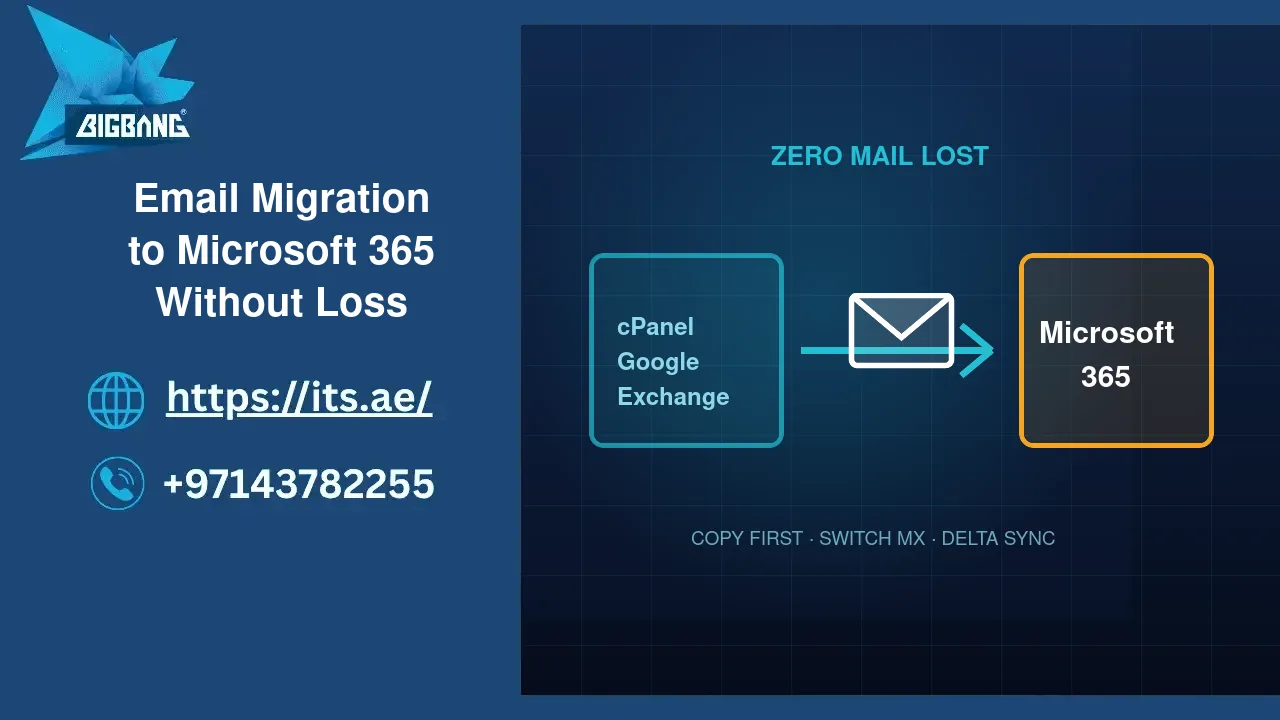
A business email migration to Microsoft 365 has four stages: prepare the tenant and licences, copy the existing mail into the new mailboxes while the old system is still live, switch the domain’s MX records at a quiet hour, then reconfigure devices and lock down authentication. Copying is done with the old system running, so the only visible moment is the DNS switch, which takes minutes; staff typically lose no mail and no more than an hour of access. A company of ten to fifty users is migrated over a weekend. Licences on our portal start at USD 17 per user per month for Microsoft 365 Business Basic, and our email migration service handles the whole sequence.
Before You Start: Three Decisions
Which licence
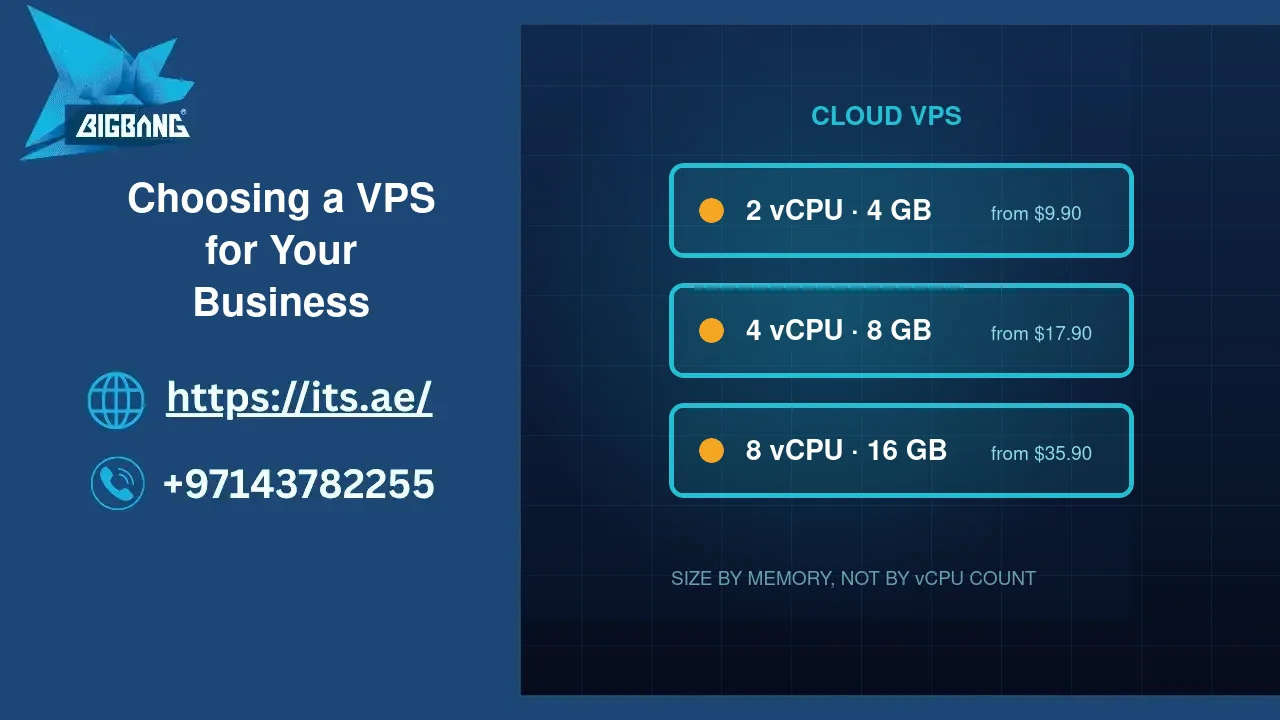
Business Basic (USD 17/user/month) gives a 50 GB mailbox, Teams, and Office in the browser and on mobile — enough for most staff. Business Standard (USD 22) adds the desktop Office applications; Business Premium (USD 33) adds device management and advanced threat protection, and is the right choice for the finance team and management. Mixing licences is normal: not everyone needs Excel on the desktop. Compare with Google Workspace pricing if you have not settled the platform yet.
What to bring across
Everything in the live mailboxes, yes. But decide about the shared “info@” and “sales@” boxes (shared mailboxes in Microsoft 365 are free and need no licence), the archives nobody has opened since 2019 (an archive mailbox, or a PST file on a backup drive), and the ex-employees’ accounts (export to PST, then let them go). Migrating junk costs time and, for large mailboxes, days.
Who owns the domain
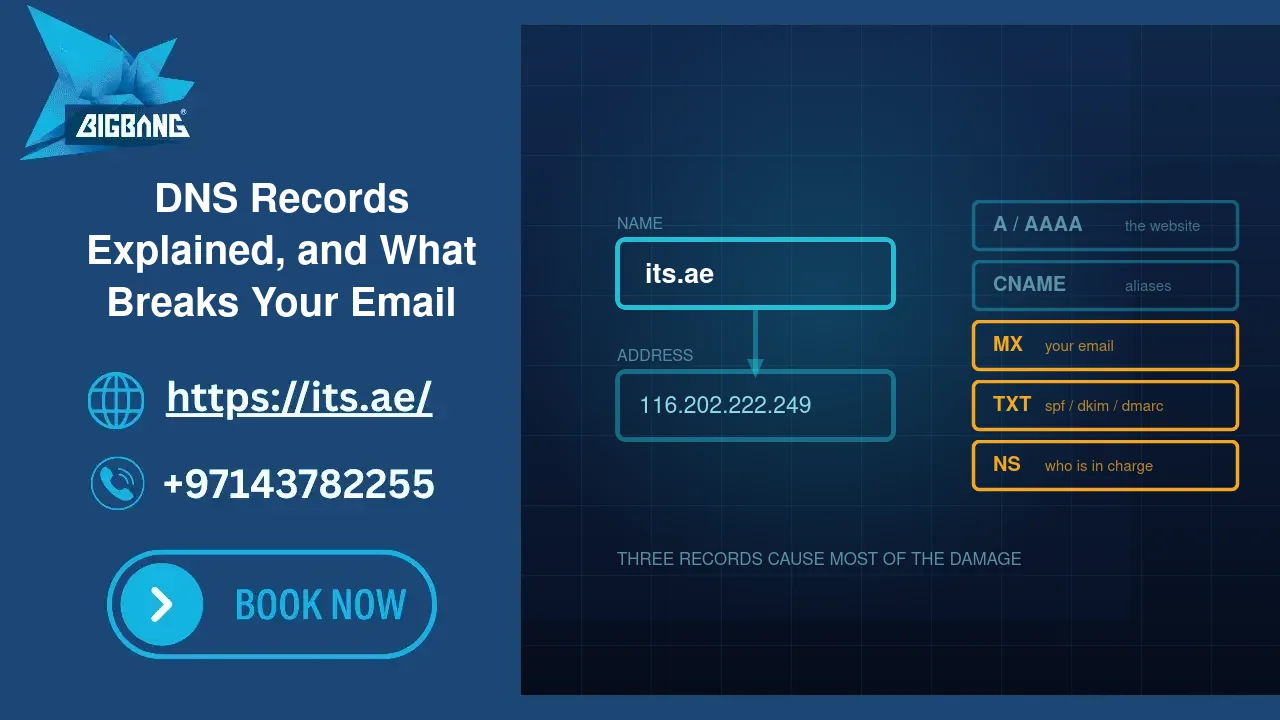
Microsoft will ask you to prove domain ownership with a DNS record. If your DNS is with your registrar, a hosting provider and a marketing agency, find out now which one is authoritative. Our guide to DNS records covers what MX, TXT and CNAME each do; you will be adding all three.
The Migration, Step by Step
- Create the tenant and add the domain. Verify it with the TXT record Microsoft provides. Do not change MX yet.
- Create users and assign licences. Match the existing addresses exactly, including aliases — a missing alias is the most common cause of “I stopped getting mail from X”.
- Pre-stage the mail. Using IMAP migration (from cPanel, Zoho or any IMAP server) or the Google Workspace migration tool, copy the contents of every mailbox into Microsoft 365. This runs for hours or days depending on volume, while everyone keeps working on the old system. Large mailboxes are throttled; start early.
- Lower the DNS TTL on the MX record to 300 seconds at least a day before the switch, so the change propagates fast.
- Switch MX, SPF, DKIM and DMARC at a quiet hour — Thursday evening in the UAE is ideal. Point MX at Microsoft, replace the SPF record with Microsoft’s include, publish the two DKIM CNAMEs and enable signing, and set DMARC to
p=nonefor the first fortnight. Our article on SPF, DKIM and DMARC explains why the order matters. - Run a final delta sync. Anything that arrived on the old server during the switch is copied across. Now nothing is missing.
- Reconfigure devices. Outlook desktop needs a new profile; phones need the account re-added (the Outlook mobile app is the smoothest path). Do this floor by floor with a one-page instruction sheet.
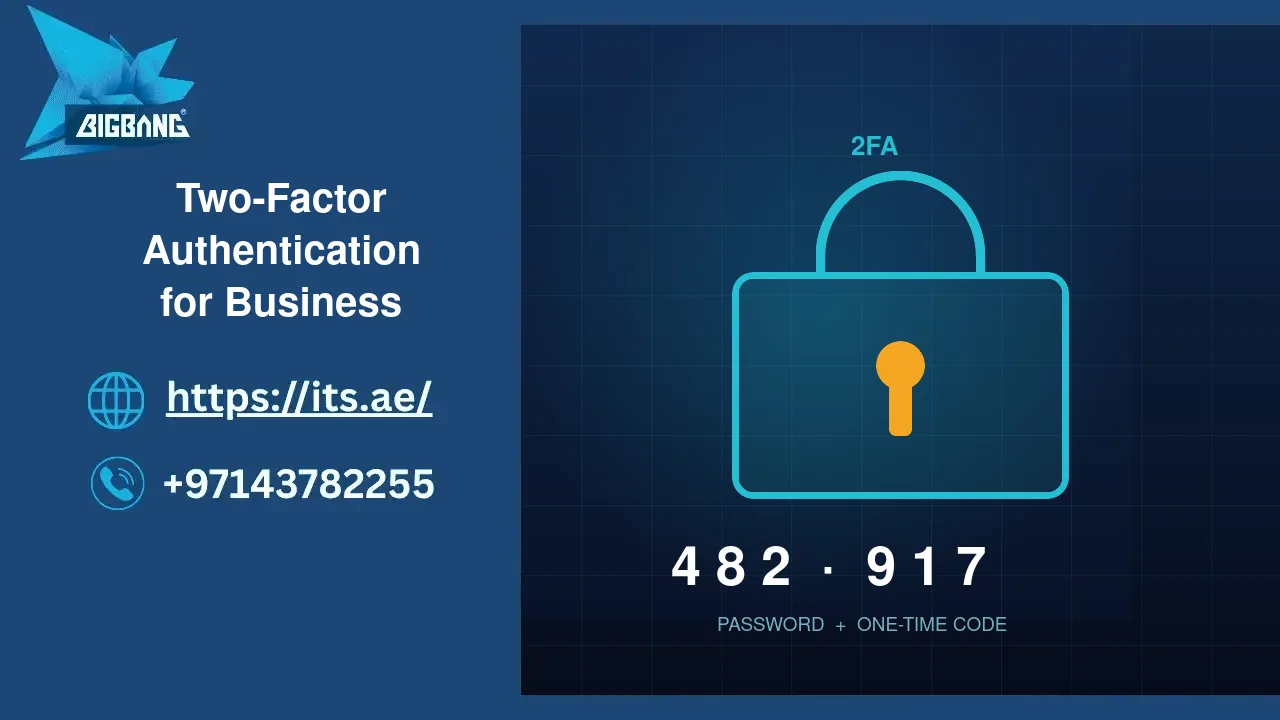
- Enforce security. Turn on multi-factor authentication for everyone, disable legacy authentication (IMAP/POP basic logins, which bypass MFA), and set up the shared mailboxes and distribution groups. See our guide to two-factor authentication for business.
- Keep the old system for thirty days in read-only mode, then decommission it. Nobody has ever regretted the overlap.
The Mistakes That Cause Downtime
- Switching MX before the copy finishes. New mail lands in empty mailboxes and staff assume everything was lost. Copy first, switch second, delta-sync third.
- Forgetting the website contact form and the ERP. Applications that send mail through the old server’s SMTP stop working the moment it is retired. Inventory every system that sends email before you start — accounting, the CRM, the website, the phone system’s voicemail.
- Two SPF records. A domain may have only one. Merging the old include with Microsoft’s, rather than replacing it, is the usual fix — and remember the ten-lookup limit.
- Leaving the old MX as a backup. Spammers deliver to the lowest-priority MX on purpose. Remove it.
- No one told the phones. An unmodified iPhone keeps polling the old server silently. Announce the switch with the reconfiguration steps, in Arabic and English, the day before.
What Improves the Day After
Beyond the mailbox: one calendar for the company, Teams for internal chat instead of WhatsApp groups, shared mailboxes with real permissions instead of a shared password, and a security dashboard that shows sign-ins from countries where you have no staff. Mail deliverability also improves — Microsoft’s sending reputation is not something a small server can match, which is why messages from cPanel accounts so often land in Gmail’s spam folder.
Where We Are
BIGBANG ITS is headquartered at the Sharjah Research, Technology and Innovation Park with a branch in Business Bay, Dubai. Support runs 24/7 and the office is open Saturday to Thursday, 09:00–18:00 Gulf time. To plan a migration to Microsoft 365 with licences, DNS and device setup handled end to end, contact us or call +971 4 378 2255.
Talk to us directly — we usually reply within minutes during business hours.