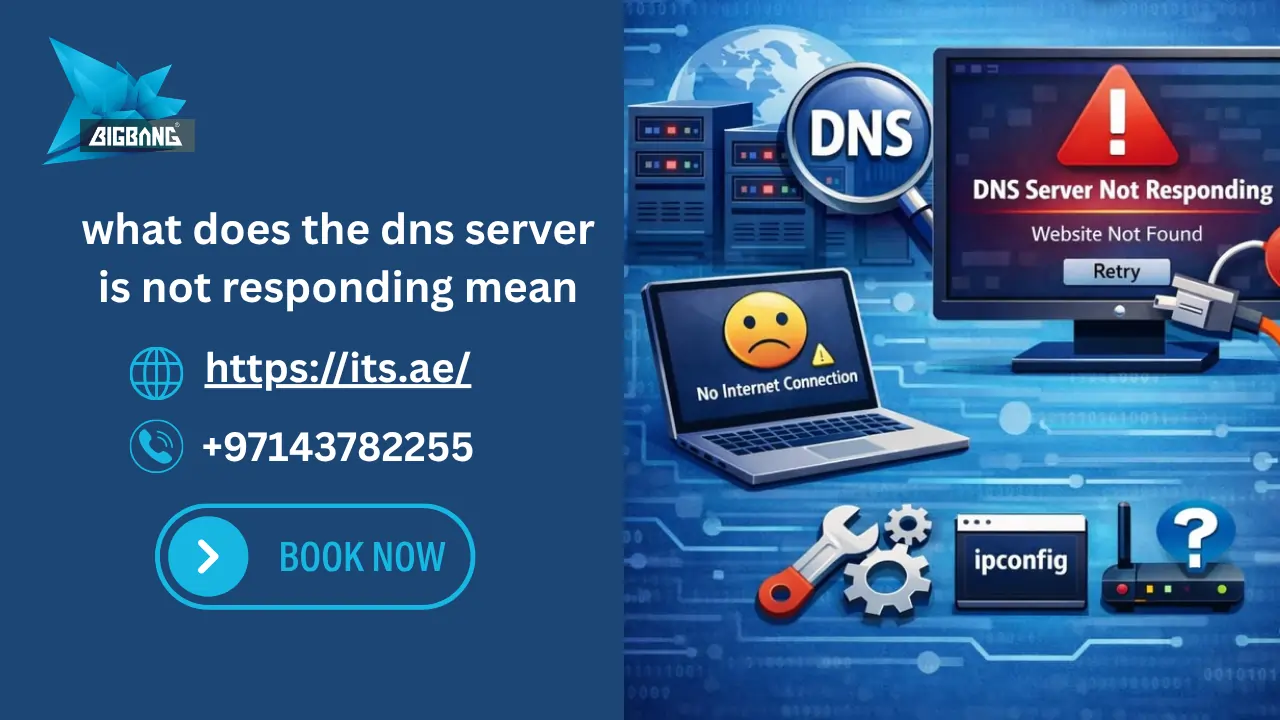
If you are searching for what does the DNS server is not responding mean, you are probably facing an error that prevents websites from loading even though your internet connection appears to be active.
This issue is one of the most common network errors on Windows, Mac, Android, gaming consoles, and home networks. In most cases, the problem occurs because your device cannot communicate with the DNS server responsible for translating domain names into IP addresses.
In this guide, you will learn what the error means, why it happens, and how to fix it using simple and advanced troubleshooting methods.
Quick Answer: What Does the DNS Server Is Not Responding Mean?
The error DNS server is not responding means your device cannot connect to the DNS server that converts website names into IP addresses. As a result, websites fail to load even when your internet connection is active.
Many users also search for what does the DNS server isn’t responding mean and what does DNS server not working mean. These phrases refer to the same problem: your device cannot successfully resolve domain names through DNS.
This guide is based on common network troubleshooting practices used by IT professionals and hosting providers.
What Is a DNS Server and Why Is It Important?
A DNS (Domain Name System) server works like the internet’s phonebook.
When you type a website address such as google.com into your browser, the DNS server translates that domain name into an IP address that computers can understand.
Without DNS servers:
- Websites would not load properly.
- Users would need to remember numerical IP addresses.
- Internet browsing would become much more difficult.
Because DNS is responsible for connecting users to websites, any issue with DNS can interrupt internet access.

How Does DNS Work?
The DNS process follows these steps:
- You enter a website address into your browser.
- Your device sends a request to a DNS server.
- The DNS server looks up the corresponding IP address.
- The website server responds to the request.
- The webpage loads in your browser.
If the DNS server fails during this process, you may see the DNS server is not responding error.
Why the DNS Server Is Not Responding
Several factors can cause DNS failures.
Internet or Network Connection Problems
A weak internet connection can prevent your device from reaching DNS servers.
Common examples include:
- Unstable WiFi connections
- ISP outages
- Damaged network cables
- Temporary router failures
Corrupted DNS Cache
Your device stores DNS information locally to improve browsing speed.
If this cache becomes corrupted, DNS requests may fail.
Incorrect DNS Settings
Manual DNS settings that are configured incorrectly can stop your device from reaching valid DNS servers.
Firewall or Antivirus Interference
Security software may occasionally block DNS requests, causing websites to become inaccessible.
Router or Modem Issues
Misconfigured routers can generate DNS-related problems across your network.
Outdated Network Drivers
Old or corrupted network adapter drivers can interfere with DNS communication.
In some cases, hosting environments like Shared Hosting can also contribute to DNS-related issues due to shared resources.
How to Test Whether DNS Is the Problem
Before applying fixes, verify that DNS is causing the issue.
You can:
- Open websites using mobile data.
- Try a different browser.
- Connect another device to the same network.
- Run network diagnostics.
- Test access using a public DNS server.
If websites are not loading at all, the issue may not be DNS-related but could be a server response problem. Learn more about server-related issues in What Does Server Stopped Responding Mean
How to Fix DNS Server Not Responding
If you are searching for how to fix the DNS server isn’t responding, DNS server is not responding how to fix, or how to solve DNS server not responding, follow the solutions below.
Fix 1: Restart Your Router and Modem
Restarting networking equipment resolves many temporary DNS issues.
Steps:
- Turn off the router and modem.
- Wait 30 seconds.
- Turn them back on.
- Reconnect your device.
Fix 2: Flush DNS Cache
Flushing the DNS cache removes outdated records.
For Windows:
- Open Command Prompt as Administrator.
- Type:
ipconfig /flushdns
- Press Enter.
Fix 3: Switch to Google DNS
Public DNS servers are often more reliable than ISP DNS servers.
Use:
- Primary DNS: 8.8.8.8
- Secondary DNS: 8.8.4.4
- You can also use Cloudflare DNS:
- Primary DNS: 1.1.1.1
- Secondary DNS: 1.0.0.1
Fix 4: Check Firewall and Antivirus Settings
Temporarily disable security software and test whether websites load.
If the problem disappears, review your firewall configuration.
Fix 5: Reset Network Settings
Network resets can eliminate configuration errors that affect DNS.
Fix 6: Update Network Drivers
Install the latest drivers for your network adapter from the device manufacturer.
What Does the DNS Server Is Not Responding Mean Windows?
Many users search for:
- What does the DNS server is not responding mean Windows
- DNS server not responding Windows 11
- DNS server not responding Windows 10
- DNS server not responding Windows 7
On Windows systems, this error typically occurs because of:
- Corrupted DNS cache
- Incorrect DNS settings
- Outdated network drivers
- Firewall restrictions
- Network adapter issues
Most Windows DNS problems can be fixed by flushing DNS, updating drivers, or changing DNS servers.
What Does the DNS Server Is Not Responding Mean Android?
Users frequently search for What does the DNS server is not responding mean Android or DNS server not responding on mobile.
On Android devices, the error usually appears because of:
- Weak WiFi signals
- Incorrect DNS configuration
- Router issues
- VPN conflicts
To fix the issue:
- Restart your phone.
- Forget and reconnect to WiFi.
- Disable VPN services.
- Reset network settings.
What Does the DNS Server Is Not Responding Mean Mac?
If you are searching for What does the DNS server is not responding mean Mac, the problem is usually related to network configuration settings.
Mac users can try:
- Renewing DHCP lease
- Restarting WiFi services
- Switching to Google DNS
- Resetting network preferences
DNS Server Not Responding on One Computer Only
If you encounter the DNS server not responding on one computer only issue while all other devices on the network work normally, the problem is usually specific to that computer.
Possible causes include:
- Corrupted DNS cache
- Incorrect network settings
- Outdated drivers
- Malware infections
- Firewall restrictions
In most cases, flushing DNS and resetting network settings resolves the issue.
DNS Server Not Responding WiFi, Ethernet, and LAN Connections
Some users experience:
- DNS server not responding WiFi
- DNS server not responding ethernet
- DNS server not responding LAN
The cause depends on the connection type.
For WiFi:
- Signal interference
- Router issues
For Ethernet:
- Damaged cables
- Faulty ports
For LAN environments:
- DNS server configuration problems
- Internal network issues
What Does DNS Server Not Responding Mean PS5?
If your PlayStation 5 displays the error, the console cannot communicate with the DNS server required for online gaming and internet services.
Common fixes include:
- Restarting the console
- Restarting the router
- Using Google DNS
- Updating network settings
What Does DNS Server Not Responding Mean PS4?
PS4 users may experience the same issue due to DNS failures.
Changing the DNS server manually often resolves connectivity problems and improves online gaming performance.
How to Change DNS Settings on Your Device
Changing DNS settings is one of the most effective ways to resolve DNS server errors and improve browsing reliability.
Popular public DNS providers include:
- Google DNS (8.8.8.8 / 8.8.4.4)
- Cloudflare DNS (1.1.1.1 / 1.0.0.1)
To change DNS settings:
- Open your device’s network settings.
- Select your active WiFi or Ethernet connection.
- Locate the DNS settings section.
- Replace the existing DNS addresses with your preferred public DNS provider.
- Save the changes and reconnect to the network.
Most devices, including Windows, Mac, Android, iPhone, PS4, and PS5, allow DNS configuration through their network settings menu.
Advanced Troubleshooting Methods
If the error continues, try the following advanced solutions:
Reset Winsock
Run:
netsh winsock reset
Reset TCP/IP Stack
Run:
netsh int ip reset
Disable IPv6
Certain network configurations experience DNS conflicts with IPv6 enabled.
Boot into Safe Mode with Networking
This helps identify whether third-party software is causing DNS failures.
Upgrading to VPS Hosting can provide more control over DNS configuration and server stability.
How to Prevent DNS Problems in the Future
To reduce the chances of DNS errors:
- Use reliable DNS providers.
- Keep network drivers updated.
- Update router firmware regularly.
- Restart networking equipment periodically.
- Maintain strong WiFi coverage.
Using a managed hosting environment such as What is a Managed WordPress Site can reduce DNS misconfigurations and improve overall website stability.
Need Professional Help with DNS and Website Performance?
If DNS errors continue to affect your website, email services, or business operations, professional network and hosting support can help identify the root cause quickly. At ITS, we provide reliable hosting solutions, DNS management, and technical support to help businesses maintain fast and stable online performance.
Contact our team today to learn how we can help improve your website’s availability, security, and network reliability.
Conclusion
Understanding what does the DNS server is not responding mean is the first step toward fixing the issue. Whether the problem occurs on Windows, Mac, Android, PS4, PS5, WiFi, Ethernet, or a single computer, DNS errors are usually caused by network settings, router problems, cache corruption, or DNS server failures.
If you continue experiencing DNS or server issues, you can Transfer Hosting to us for a more stable and optimized environment. Our team at ITS can help you migrate and optimize your hosting environment for better speed, stability, and uptime.
By following the troubleshooting methods in this guide, most users can restore internet access within minutes and prevent future DNS-related issues.
FAQs
How Do I Fix DNS Server Not Responding?
To fix the DNS server not responding error, restart your router, flush the DNS cache, switch to a public DNS provider such as Google DNS or Cloudflare DNS, reset network settings, and update your network drivers. In most cases, one of these steps restores normal internet connectivity.
What Does DNS 8.8.8.8 and 8.8.4.4 Do?
8.8.8.8 and 8.8.4.4 are public DNS servers provided by Google. They help translate domain names into IP addresses and are often used to improve DNS reliability, speed, and troubleshooting when an ISP’s DNS server is experiencing issues.
Talk to us directly — we usually reply within minutes during business hours.